Create your account
This page walks through everything from the sign-up form to your first dashboard: the account, the confirmation email, every onboarding question and what it changes, and what the dashboard shows when you arrive. It takes about five minutes.
If someone invited you to an existing workspace, you don’t need this page. Open the link in the invitation email instead; see Members and roles.
Sign up
Section titled “Sign up”-
Open the sign-up page.
Go to app.groundrule.dev and choose Create an account under the sign-in form.
-
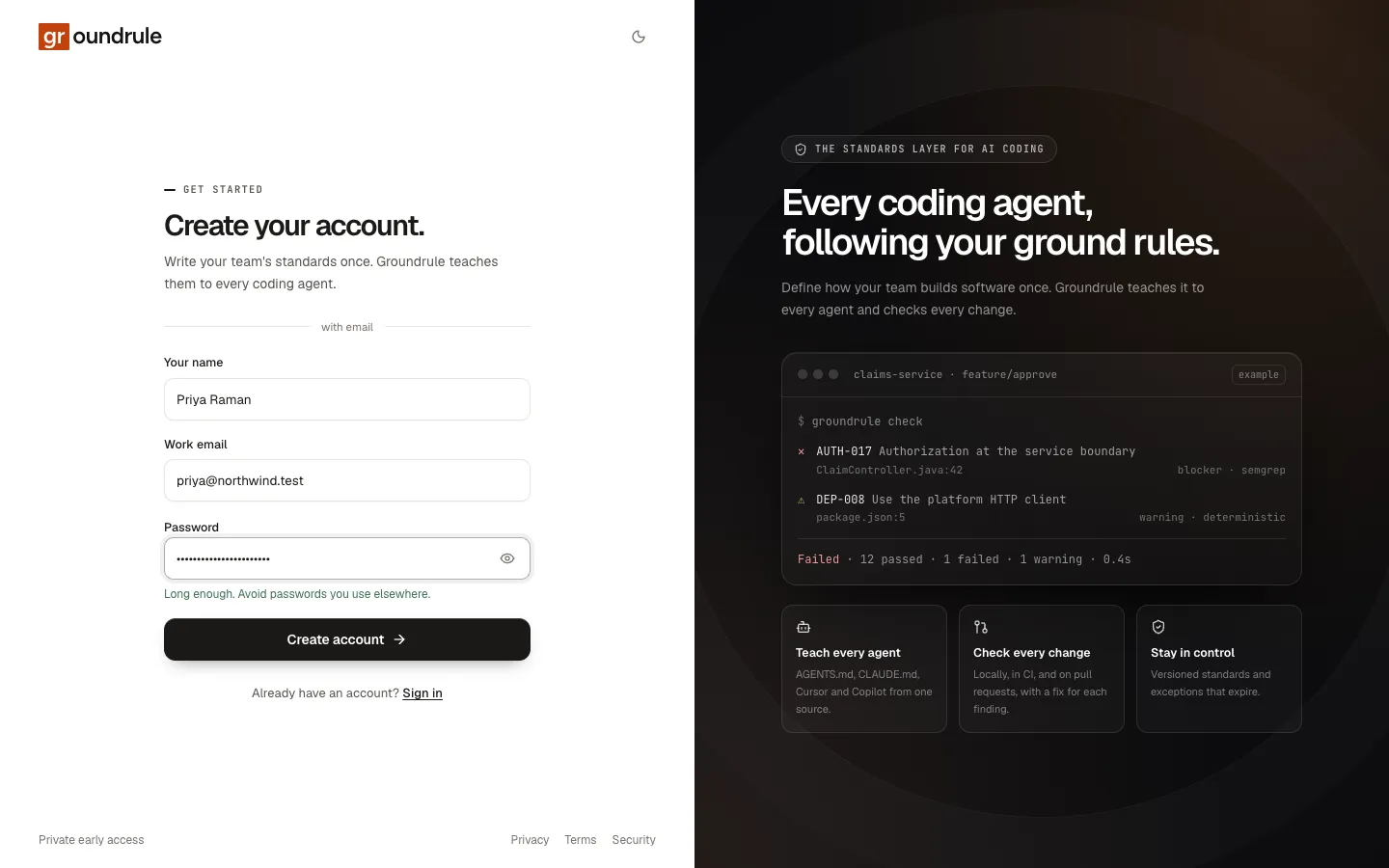
Fill in the form.
Field What to enter Your name Your full name, up to 120 characters. It appears on standards you own and changes you approve. Work email The address you’ll sign in with. You can’t change it later yet, so use the one your team knows. Password At least 10 characters. A short phrase works well. Any character is allowed, including spaces. Under the password, a counter shows how close you are: “At least 10 characters (6/10). A short phrase works well.” At 10 characters it changes to “Long enough. Avoid passwords you use elsewhere.” The eye icon shows or hides what you typed.
-
Choose Create account.
Create account stays disabled until all three fields are filled and the password is long enough.
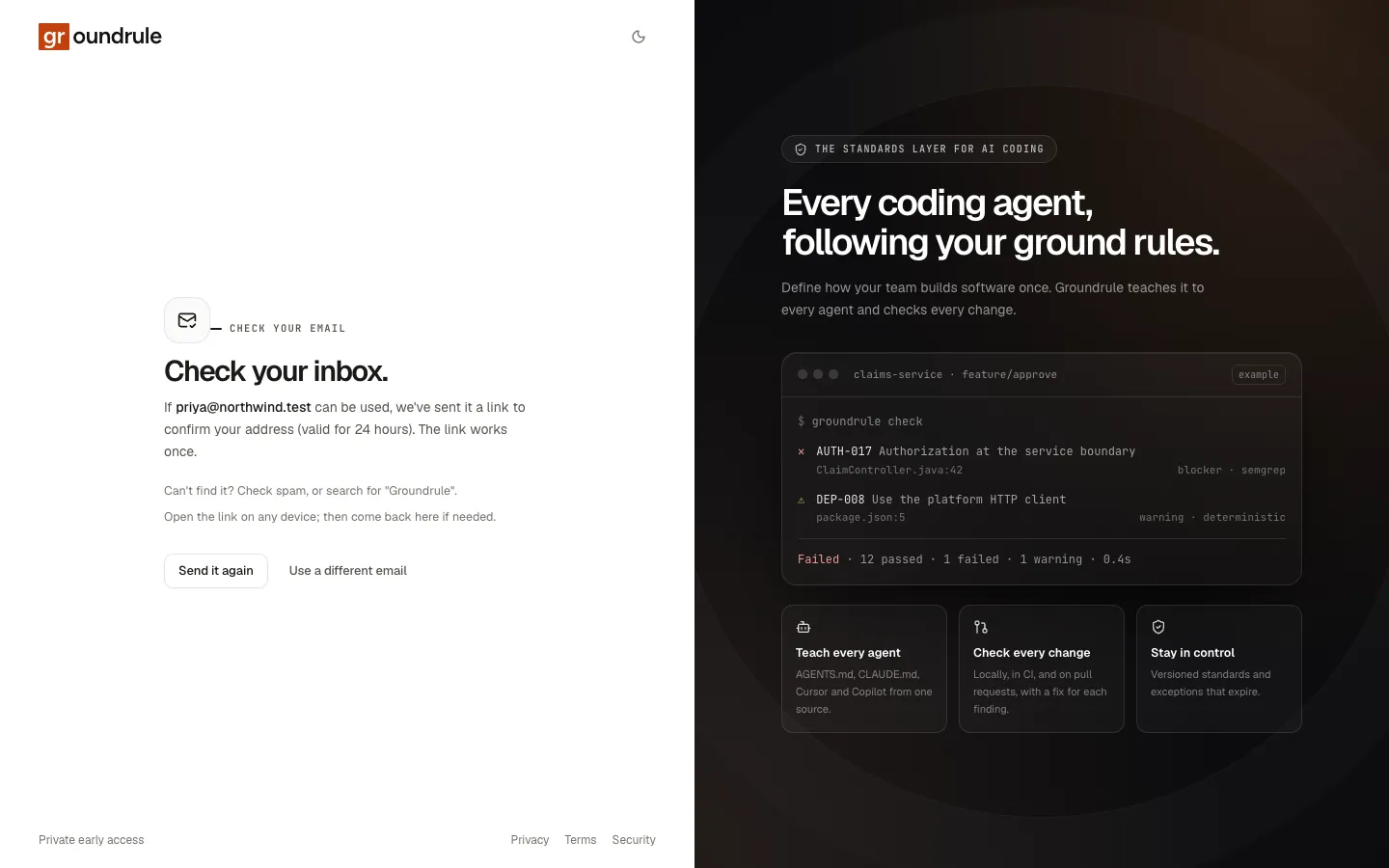
You should see Check your inbox. with the address you entered. Groundrule has sent a link to confirm it, valid for 24 hours.
If the password is refused after you submit, the form says why:
| Message | What to change |
|---|---|
| “Use at least 10 characters. A short phrase works well.” | Make it longer. |
| “Use at most 128 characters.” | Make it shorter. |
| “That password is too common. Choose something less predictable.” | It’s on a list of common passwords, or it repeats one character. |
| “Don’t include your email address in your password.” | Remove your email address, or the part before the @, from the password. |
Where your deployment offers it, Sign up with GitHub appears above the form. It uses the verified primary email of your GitHub account, so there’s no confirmation email to wait for. See Sign in with GitHub.
Confirm your email
Section titled “Confirm your email”-
Open the email from Groundrule and its confirmation link. Any device works.
-
Choose Confirm and continue on the page that opens.
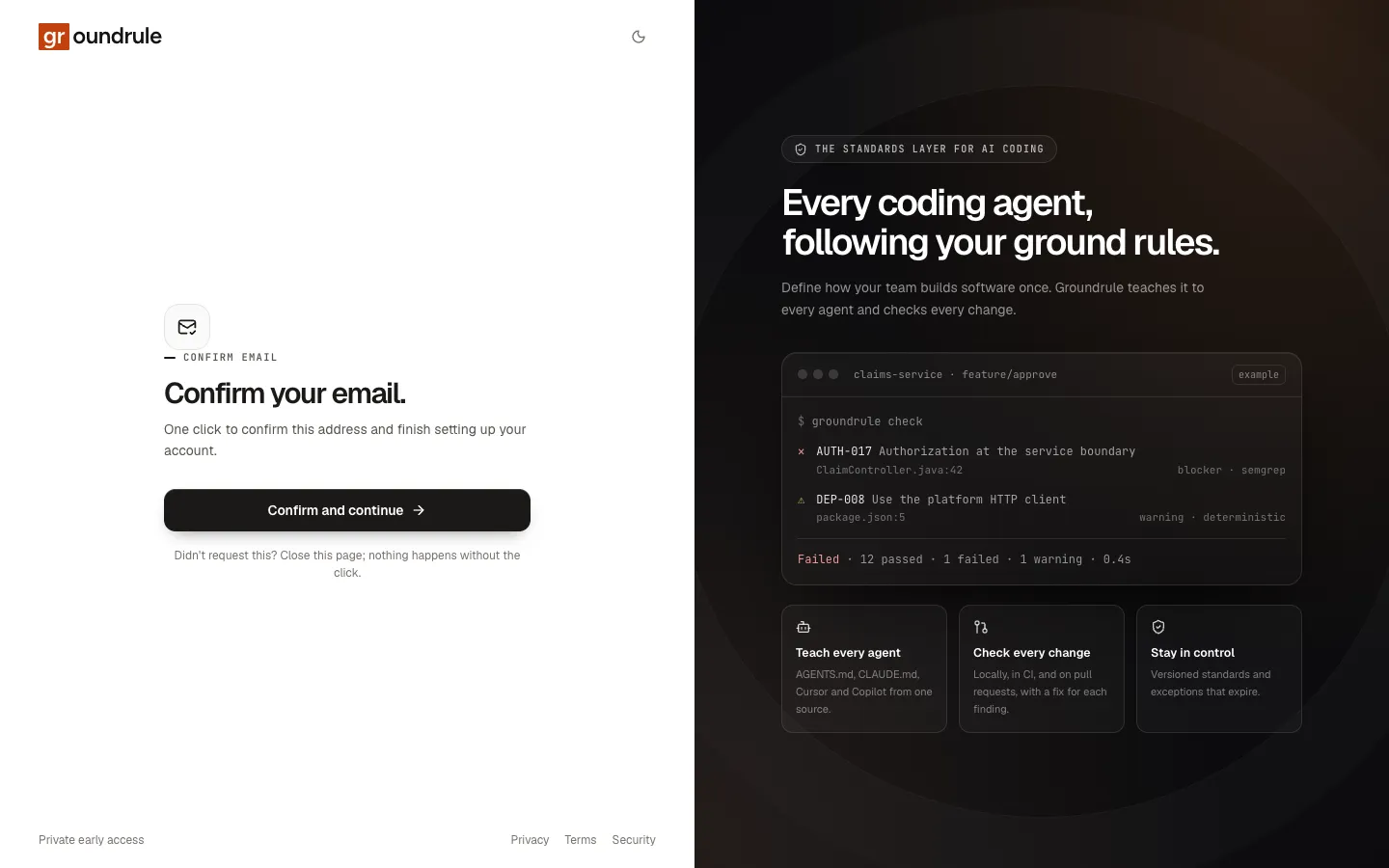
You should land on onboarding, signed in.
The link waits for your click on purpose. Some email security tools open every link in a message to scan it. Because nothing happens until you press Confirm and continue, a scanner can’t use up your link. If you didn’t sign up, close the page; nothing happens without the click.
If the email doesn’t arrive
Section titled “If the email doesn’t arrive”- Check your spam folder, or search your mail for “Groundrule”.
- On the Check your inbox page, choose Send it again. You can resend up to three times an hour. If you resend too often, the page says “Couldn’t send another link yet. Wait a few minutes and try again.”
- If you mistyped the address, choose Use a different email and sign up again.
- If you leave the page, go to the sign-in page and sign in with your email and password. Groundrule replies “Confirm your email first. We’ve sent you a new link.” and sends a fresh one.
If the link has expired
Section titled “If the link has expired”A confirmation link lasts 24 hours and works once. An old or used link opens Link expired (“This confirmation link doesn’t work.”). Choose Sign in to get a new link, sign in with your password, and Groundrule sends a new one. Only the newest link works.
Onboarding
Section titled “Onboarding”Onboarding asks four questions, one per step. The left side shows your progress: About you, Workspace, Your stack, Packs. Continue stays disabled until the step’s required answers are in, and Back returns to the previous step without losing what you entered.
Step 1: Tell us about you
Section titled “Step 1: Tell us about you”| Field | Choices |
|---|---|
| Full name | Prefilled from sign-up. Required. |
| What best describes your role? | Engineering leader (VP, director, or manager) · Staff or principal engineer · Platform or developer experience · Security or AppSec · Software engineer · Founder or CTO · Something else |
This describes you, not your permissions. Your permissions come from your workspace role, which is Admin for the person who creates a workspace. You can change both answers later in Settings → Your account.

If you create a second workspace later, and your account already has a name and role, this step is skipped.
Step 2: Set up your workspace
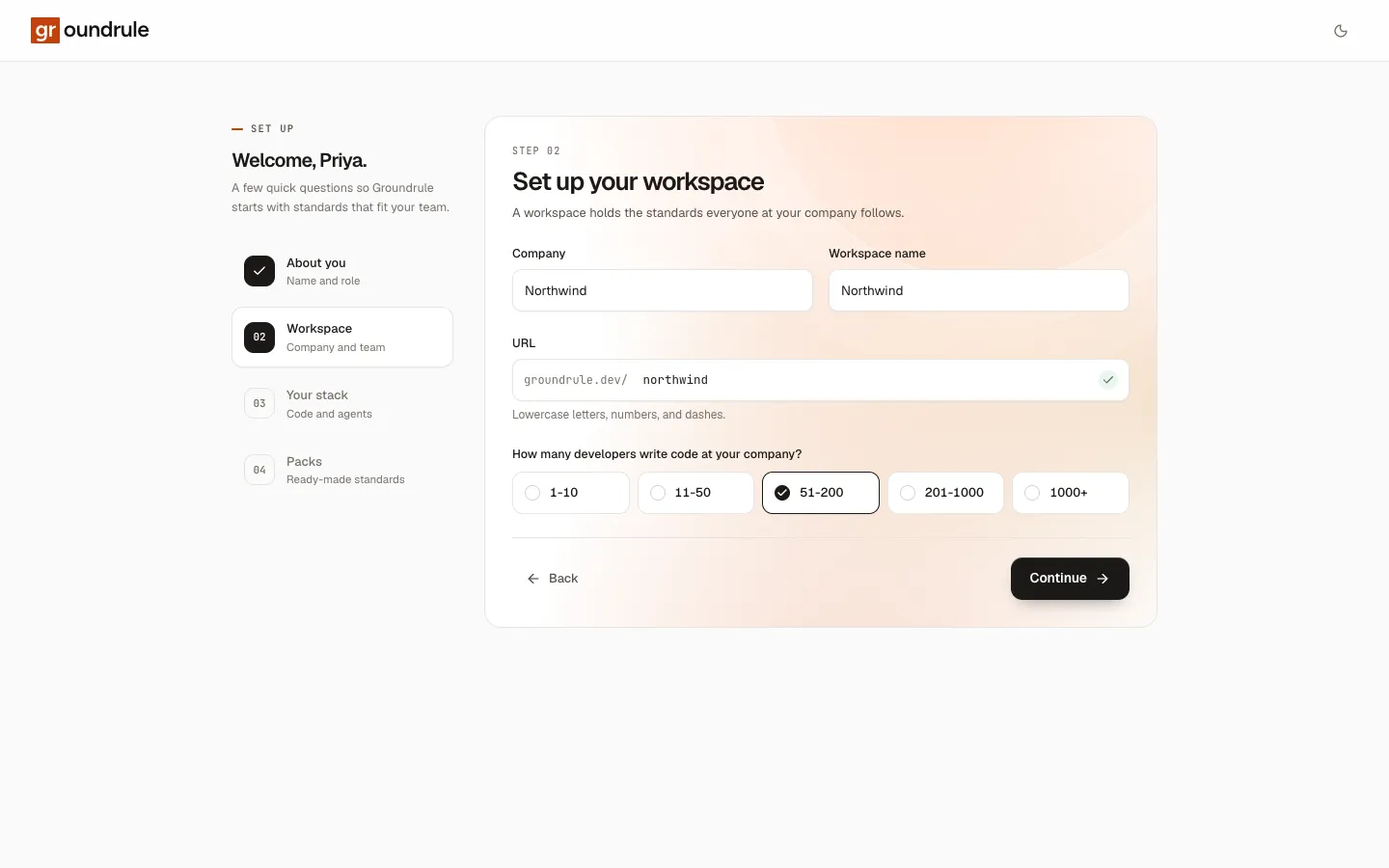
Section titled “Step 2: Set up your workspace”A workspace holds the standards everyone at your company follows. All four fields are required.
| Field | What it is |
|---|---|
| Company | Your company’s name, such as Acme Payments. |
| Workspace name | What the dashboard calls the workspace. It copies Company until you type in it. You can rename it later. |
| URL | The workspace’s URL name, such as acme-payments. It’s made from the workspace name as you type, and you can edit it. |
| How many developers write code at your company? | 1-10 · 11-50 · 51-200 · 201-1000 · 1000+ |
Choosing the URL name
Section titled “Choosing the URL name”The URL name is permanent. It appears in links to your workspace (app.groundrule.dev/acme-payments) and in every connected repository’s .groundrule/config.yaml, so it can’t be changed after you create the workspace.
The rules:
- 2 to 48 characters.
- Lowercase letters, numbers, and single dashes between them. No dash at the start or end, and no two dashes in a row. Capitals become lowercase as you type.
- Not one of the reserved names:
admin,api,app,auth,catalog,cli,device,docs,forgot-password,groundrule,help,invite,login,logout,new,onboarding,reset-password,settings,signup. - Not already used by another workspace.
Availability is checked while you type. A spinner means it’s checking; a green tick means it’s free; a red cross means it isn’t, with the reason under the field:
| Message | Meaning |
|---|---|
| “This URL is taken. Try another.” | Another workspace uses it. |
| “Use lowercase letters, numbers, and single dashes” | It contains another character, or a dash in the wrong place. |
| “Use at least 2 characters” / “Use at most 48 characters” | It’s too short or too long. |
| “This name is reserved” | It’s on the reserved list. |
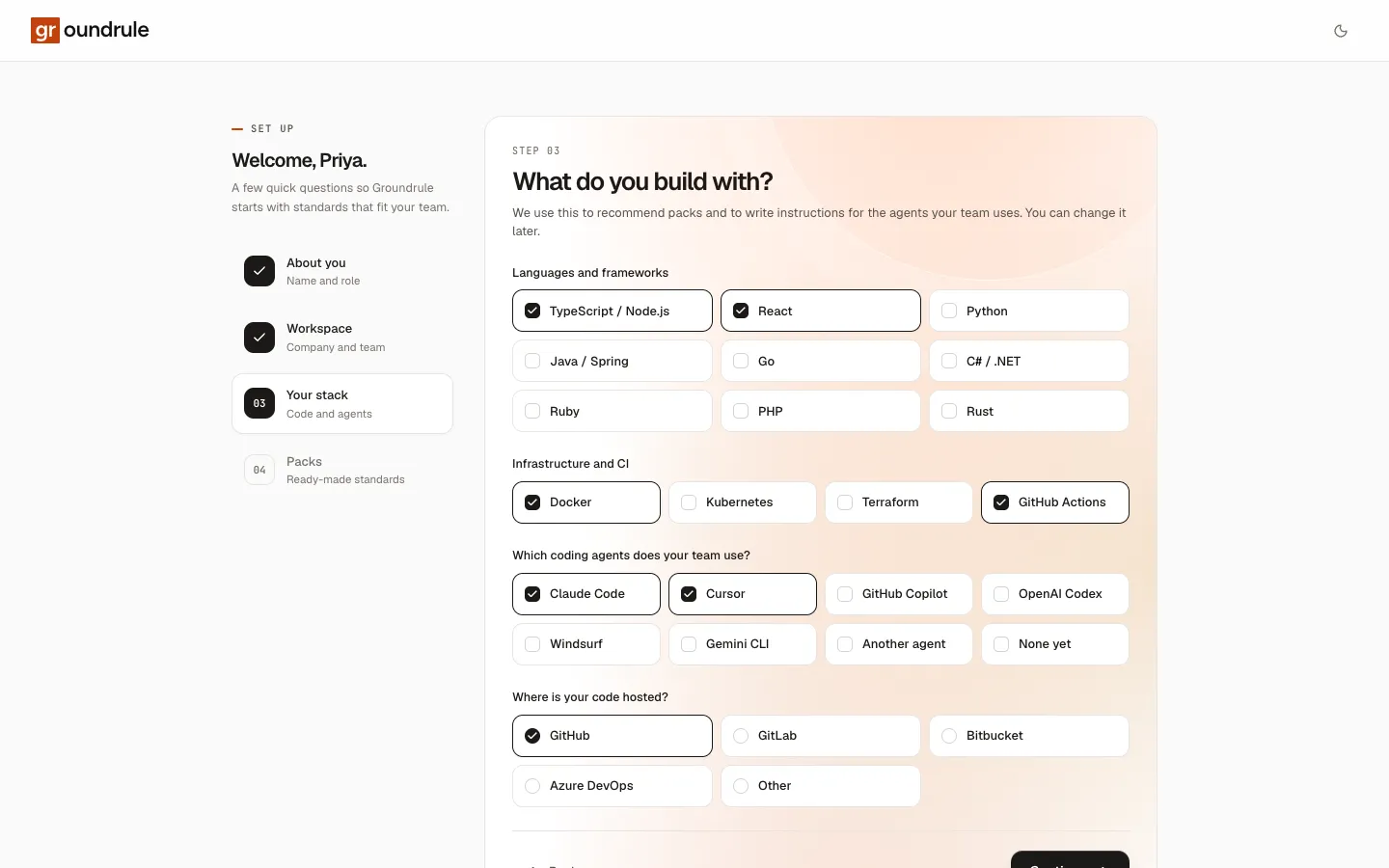
Step 3: What do you build with?
Section titled “Step 3: What do you build with?”Groundrule uses these answers to recommend packs, and later to decide which agent files npx @groundrule/cli init sets up. You can change them any time in Workspace settings.
| Question | Choices | Required |
|---|---|---|
| Languages and frameworks | TypeScript / Node.js · React · Python · Java / Spring · Go · C# / .NET · Ruby · PHP · Rust | At least one choice from this group or the next |
| Infrastructure and CI | Docker · Kubernetes · Terraform · GitHub Actions | |
| Which coding agents does your team use? | Claude Code · Cursor · GitHub Copilot · OpenAI Codex · Windsurf · Gemini CLI · Another agent · None yet | At least one |
| Where is your code hosted? | GitHub · GitLab · Bitbucket · Azure DevOps · Other | One |
You can pick several languages, infrastructure tools and agents. None yet clears the other agents, and picking an agent clears None yet.
Step 4: Start from proven standards
Section titled “Step 4: Start from proven standards”This step lists every pack in the catalog. The packs that fit your answers are marked Recommended, listed first, and already turned on. Each pack shows its description, its number of standards, and how many of them are blockers.
How the recommendation works:
| Pack | Recommended when |
|---|---|
| Security baseline | Always |
| AI coding agent hygiene | You chose any coding agent other than None yet |
| TypeScript/Node, React, Python, Java/Spring, Go | You chose that language or framework |
| Docker, Kubernetes, Terraform, GitHub Actions | You chose that tool |
| HTTP API design | You chose any server language: TypeScript / Node.js, Python, Java / Spring, Go, C# / .NET, Ruby, PHP or Rust |
C# / .NET, Ruby, PHP and Rust have no pack of their own yet. Choosing them still turns on HTTP API design and the security baseline. The testing pack is never preselected; turn it on here or later if you want it.
For example, TypeScript / Node.js, React, Docker, GitHub Actions, Claude Code and Cursor preselect seven packs: AI coding agent hygiene, Docker, GitHub Actions, HTTP API design, React, Security baseline, and TypeScript/Node. Together they hold 91 standards.
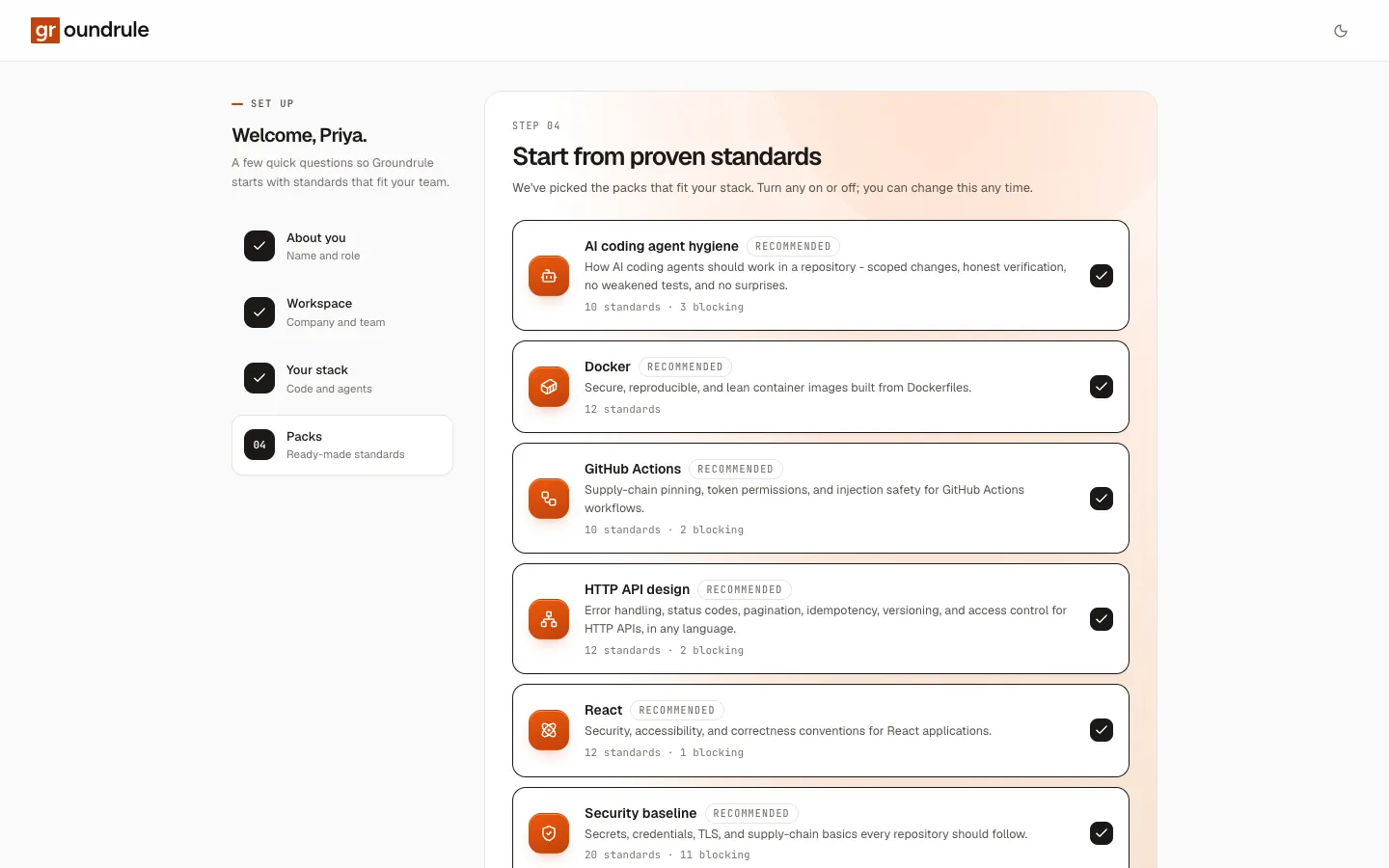
Select a pack to turn it on or off. If you go back and change your stack after visiting this step, your own pack choices are kept. Then choose the finish button, which reads Create followed by your workspace name, for example Create Acme Payments.
You should land on your new workspace’s dashboard. You are its Admin, and the chosen packs’ standards are already in your rulebook.
If the URL name was taken in the meantime, onboarding returns to step 2 with "acme-payments" is taken. Try another URL. Pick another and continue.
Your first dashboard
Section titled “Your first dashboard”The dashboard greets you by first name and shows three things at the top: the workspace name, your role, and “N standards in effect”.
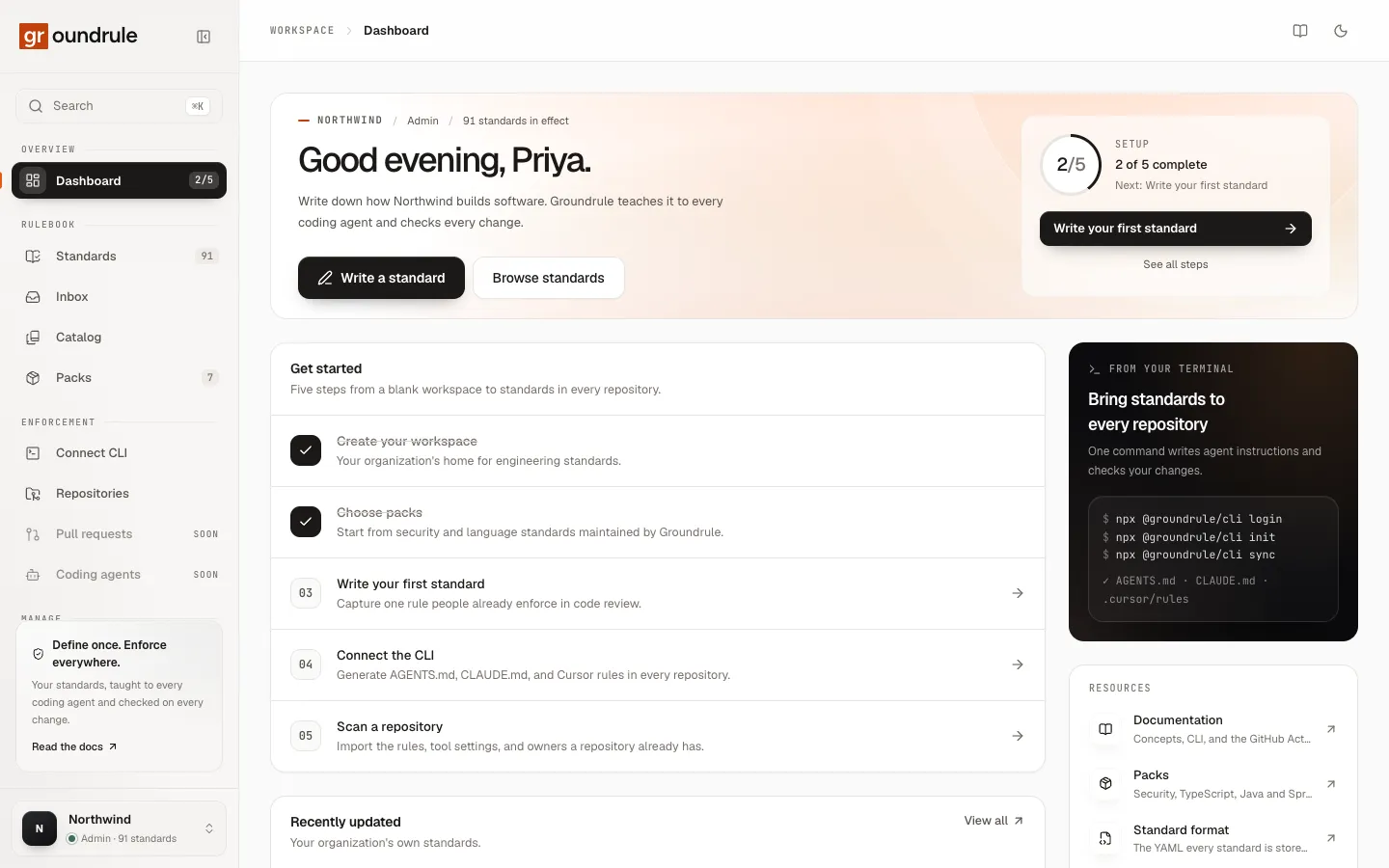
The Setup card tracks five steps. The sidebar also shows a setup count next to Dashboard, for example 2/5.
| Step | Done when | Where it takes you |
|---|---|---|
| 1. Create your workspace | Always done | |
| 2. Choose packs | At least one pack is on | Packs |
| 3. Write your first standard | Your workspace has a standard of its own | Standards → New standard |
| 4. Connect the CLI | Someone has used an API token, or a scan has been uploaded | Connect CLI |
| 5. Scan a repository | A scan has been uploaded | Connect CLI |
A new workspace shows 2 of 5 complete and “Next: Write your first standard”. The button under it opens that step; See all steps scrolls to the full Get started list.
Further down:
- Recently updated lists your workspace’s own standards, newest first. Until you write one, it says “No standards of your own yet” with a Write one button.
- From your terminal shows the three commands that connect a repository:
npx @groundrule/cli login,npx @groundrule/cli init, andnpx @groundrule/cli sync. - Resources links to these docs, the packs, the standard format, and all standards.
What to do next
Section titled “What to do next”- Look around: A tour of the dashboard.
- Write a rule of your own: Describe a rule or Write a standard.
- Invite your team: Members and roles.
- Connect a repository: CLI quickstart.