Members and roles
Everyone in a workspace is a member with one role. The role decides what they can do: read the rulebook, write and accept rules, manage teams and settings, or manage people. This page covers inviting people, what the invited person sees, the seven roles, and changing or removing members.
Only workspace admins can invite people, change roles, and remove members. Everyone else can see the member list.
The seven roles
Section titled “The seven roles”| Role | In one line | Typical person |
|---|---|---|
| Admin | Everything, including members and invitations | The workspace’s owners; at least one is required |
| Platform admin | Workspace settings, teams, repositories, and rules | Platform or developer-experience engineers |
| Standard owner | Writes and adopts rules | Tech leads and the people who own a category of rules |
| Security reviewer | Reads everything; review workflows are coming | Application security engineers |
| Manager | Reads everything | Engineering managers |
| Developer | Reads the rulebook and connects the CLI | Most engineers |
| Viewer | Read-only | Anyone who only needs to look |
What that means in practice:
| Can… | Admin | Platform admin | Standard owner | Security reviewer, Manager, Developer, Viewer |
|---|---|---|---|---|
| See standards, the inbox, the catalog, packs, repositories, scans and evidence | ✓ | ✓ | ✓ | ✓ |
| Sign in the CLI, create API tokens, upload scans, propose rules | ✓ | ✓ | ✓ | ✓ |
| Write, edit and publish standards; change how rules are adopted and rolled out | ✓ | ✓ | ✓ | |
| Accept or reject proposals in the inbox; use AI; import documents | ✓ | ✓ | ✓ | |
| Choose packs; manage teams, repositories and owners; connect apps and GitHub | ✓ | ✓ | ||
| Change workspace settings (name, stack) | ✓ | ✓ | ||
| Change AI settings; invite, change and remove members; limit invitation domains | ✓ |
Security reviewers, managers, developers and viewers have the same permissions today. The roles exist so you can record who is who; review workflows for security reviewers are not built yet. Every action, role by role, is in Roles and permissions.
When someone tries something their role can’t do, they see a message like “Your role (developer) can’t decide on proposals. Ask an admin.” Most pages hide controls a person can’t use: for example, a developer sees the inbox but no Accept or Reject buttons.
Invite people
Section titled “Invite people”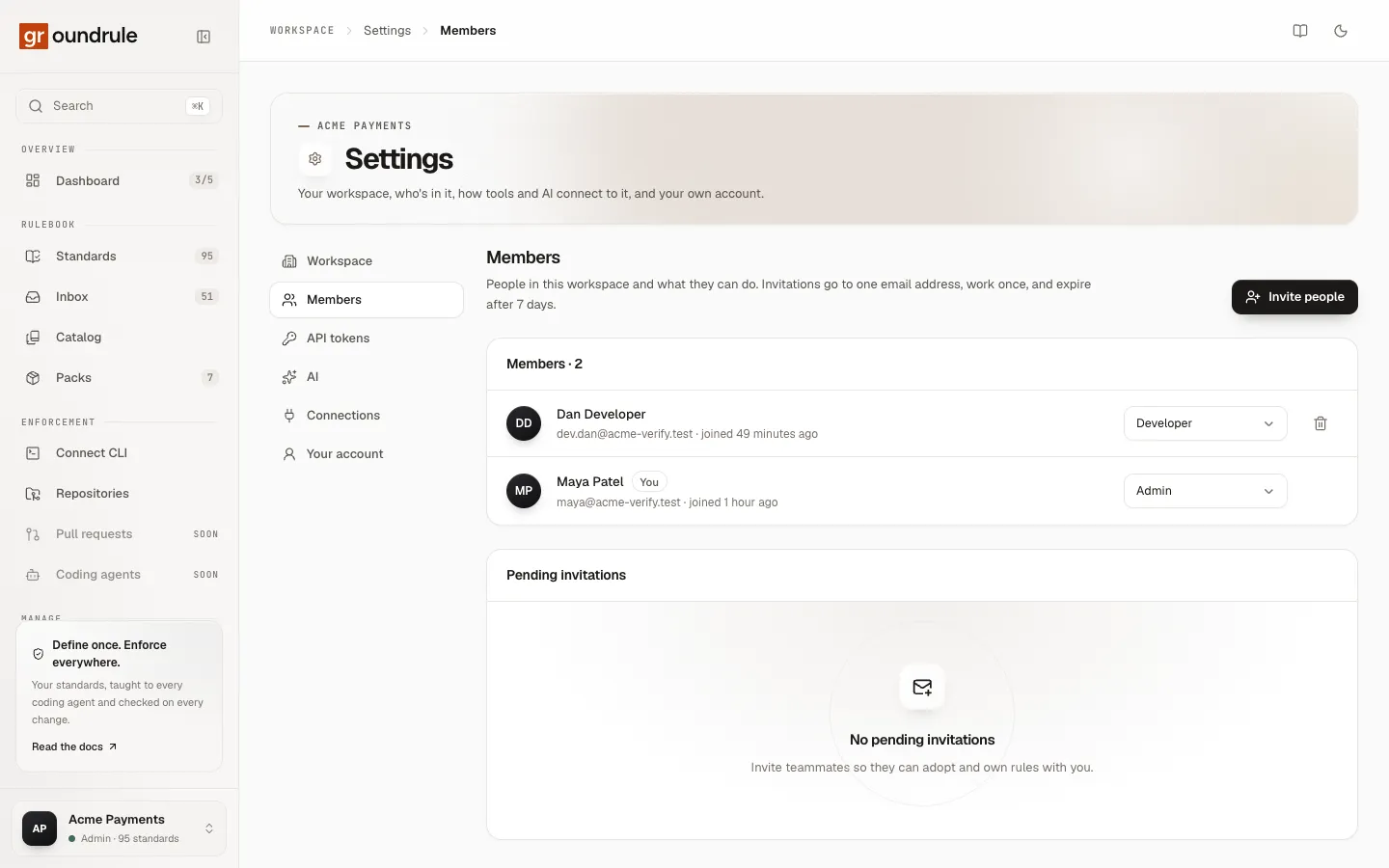
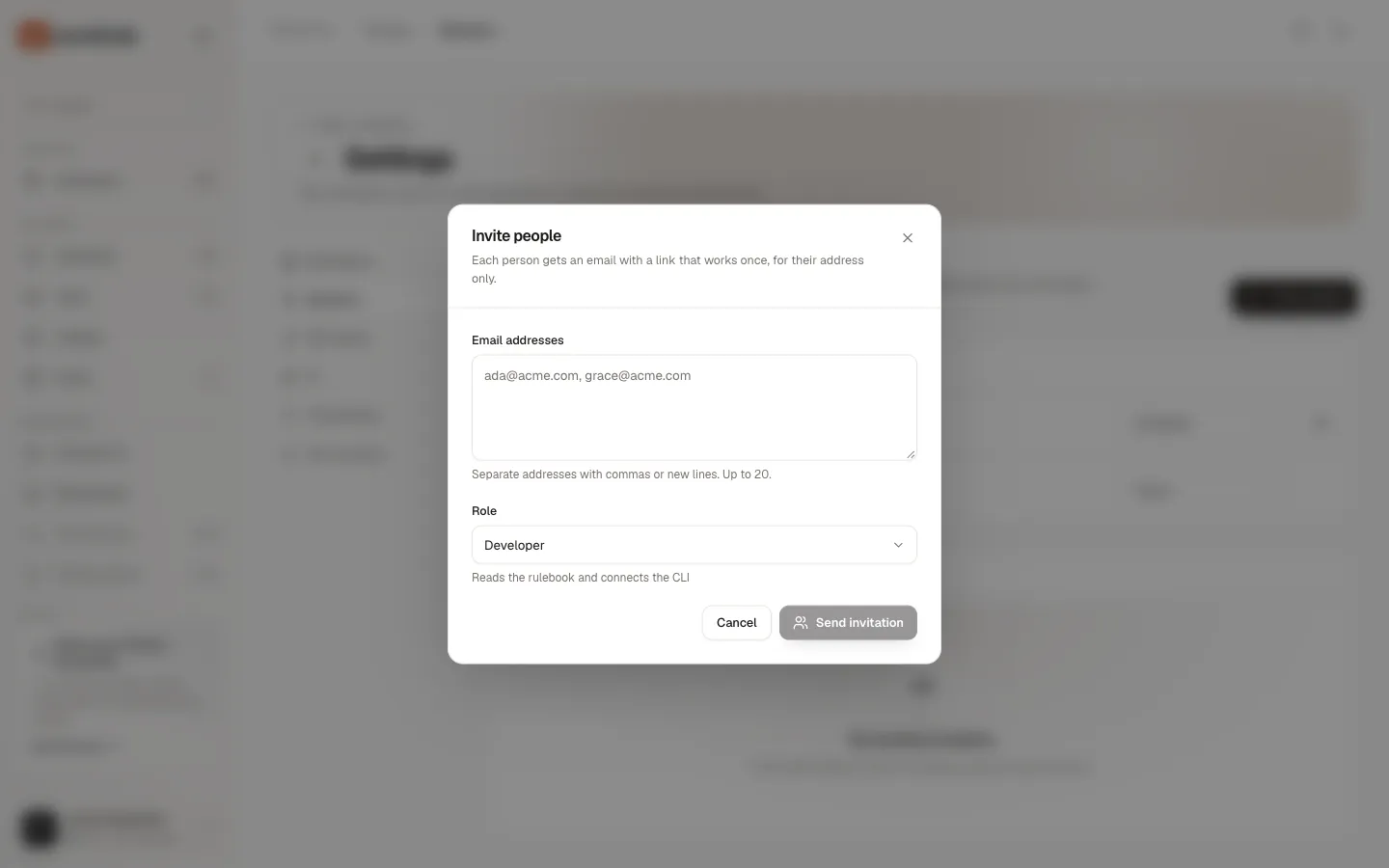
- Open Settings → Members and choose Invite people.
- In Email addresses, enter one or more addresses. Separate them with commas, spaces, semicolons or new lines. You can paste a list straight from an email client; angle brackets around addresses are removed. Up to 20 at a time.
- Choose a Role. The default is Developer. The line under the menu describes the role you picked.
- Choose Send invitation (or Invite 3 people when there are several).
You should see an Invitations summary with one result per address:
| Result | Meaning |
|---|---|
| Invited | An email was sent. The invitation appears under Pending invitations. |
| Already a member | That person is already in the workspace. Nothing was sent. |
| Already invited | There’s a live invitation for that address. Use Resend instead. |
| Domain not allowed | The workspace only allows invitations to certain email domains. Change the list in Workspace settings. |
| Too many open invitations | The workspace already has 200 open invitations. Revoke some first. |
Choose Invite more to send another batch, or Done.
If the form refuses an address before sending, it says “Check” followed by the address that doesn’t look like an email.
What an invitation is
Section titled “What an invitation is”- It goes to one email address and can only be accepted by an account with that exact email.
- It works once.
- It expires after 7 days.
- It carries the role you chose. You can change the role after the person joins.
Pending invitations
Section titled “Pending invitations”Under Pending invitations, each invitation shows the address, its role, who sent it, and when it was last sent (with a count if it was sent more than once). Expired invitations are marked Expired.
- Resend sends a new link and restarts the 7 days. The old link stops working, so a forwarded copy can’t be used. You can resend each invitation up to 5 times in total, and not more than once a minute.
- Revoke withdraws an invitation. The link stops working at once. For an expired invitation the button reads Remove.
To invite someone again after their invitation expired, invite the address again: the expired invitation is replaced.
Limits on invitations
Section titled “Limits on invitations”| Limit | Value |
|---|---|
| Addresses per invitation batch | 20 |
| Open (unexpired) invitations per workspace | 200 |
| Invitations sent per admin | 50 an hour |
| Invitations sent per workspace | 200 a day |
| Sends per invitation, including the first | 5 |
| Time between resends | 1 minute |
Over the hourly or daily limit, Groundrule says “You’ve sent a lot of invitations. Wait a while and try again.” Too many resends of one invitation says “This invitation was sent too many times. Revoke it and invite again later.”
Accept an invitation
Section titled “Accept an invitation”This section is for the person invited. The email comes from Groundrule and names who invited you, the workspace, and your role.
-
Open the link in the email. It opens a page that reads, for example: “Maya Patel invited dan@acme.com to the Acme Payments workspace as developer: reads the rulebook and connects the CLI.”
-
Continue in one of three ways:
You are… What to do New to Groundrule Enter Your name and Choose a password (at least 10 characters), then choose Create account and join. Your email is already confirmed by the invitation. Already a Groundrule user, signed out Choose Sign in as your email, or Continue with GitHub where available. After signing in you come back to the invitation. Already signed in with the invited email Choose Join Acme Payments.
You should land on the workspace’s dashboard, as a member with the role in the invitation.
If you’re signed in with a different email, the page says “You’re signed in as … This invitation can only be accepted by …”. Choose Sign out and continue as the invited address.
If you try to create an account for an email that already has one, the page says “You already have a Groundrule account for … Sign in to accept the invitation.” and offers Sign in.
When an invitation doesn’t work
Section titled “When an invitation doesn’t work”| Page title | Why | What to do |
|---|---|---|
| “This invitation doesn’t work.” | The link is incomplete, or a newer invitation replaced it. | Ask whoever invited you to send it again. |
| “This invitation has expired.” | Invitations last 7 days. | Ask for a new one. |
| “This invitation was withdrawn.” | An admin revoked it. | Ask a workspace admin if you still need access. |
| “This invitation was already used.” | Someone accepted it. | If it was you, sign in to open the workspace. |
Change someone’s role
Section titled “Change someone’s role”- Open Settings → Members.
- Pick a new role from the menu next to the person’s name.
The change applies immediately. You should see a confirmation such as “Dan Developer is now standard owner”.
Changing your own role away from Admin asks you to confirm: “Change your own role? You’ll lose admin access to this workspace.”
A workspace always keeps at least one admin. If a change would leave none, Groundrule refuses it: “A workspace needs at least one admin. Make someone else an admin first.”
Remove a member
Section titled “Remove a member”- Open Settings → Members.
- Choose the bin icon next to the person.
- Confirm: “Remove … ? They lose access right away, and their API tokens stop working.”
The person loses access to the workspace at once, and any CLI or CI token they created for it stops working. Their account stays, along with their access to other workspaces. The standards and decisions they made stay too.
You can’t remove yourself this way. To leave, use Leave workspace in Workspace settings.
Related
Section titled “Related”- Roles and permissions: the full permission matrix.
- Workspace settings: limit invitations to your email domains.
- Limits