Write a standard
Packs cover common ground. The rules that are specific to your codebase, such as “Route all Stripe calls through src/payments/gateway.ts”, you write yourself. This page walks through the standard editor field by field, then covers checks, examples, the YAML view, validation, saving, versions, and drafts.
To have AI write the first draft from one sentence instead, see Describe a rule with AI. You can edit its draft in this same editor.
Who can write standards: admins, platform admins and standard owners. Other roles don’t see New standard.
Write a standard, step by step
Section titled “Write a standard, step by step”-
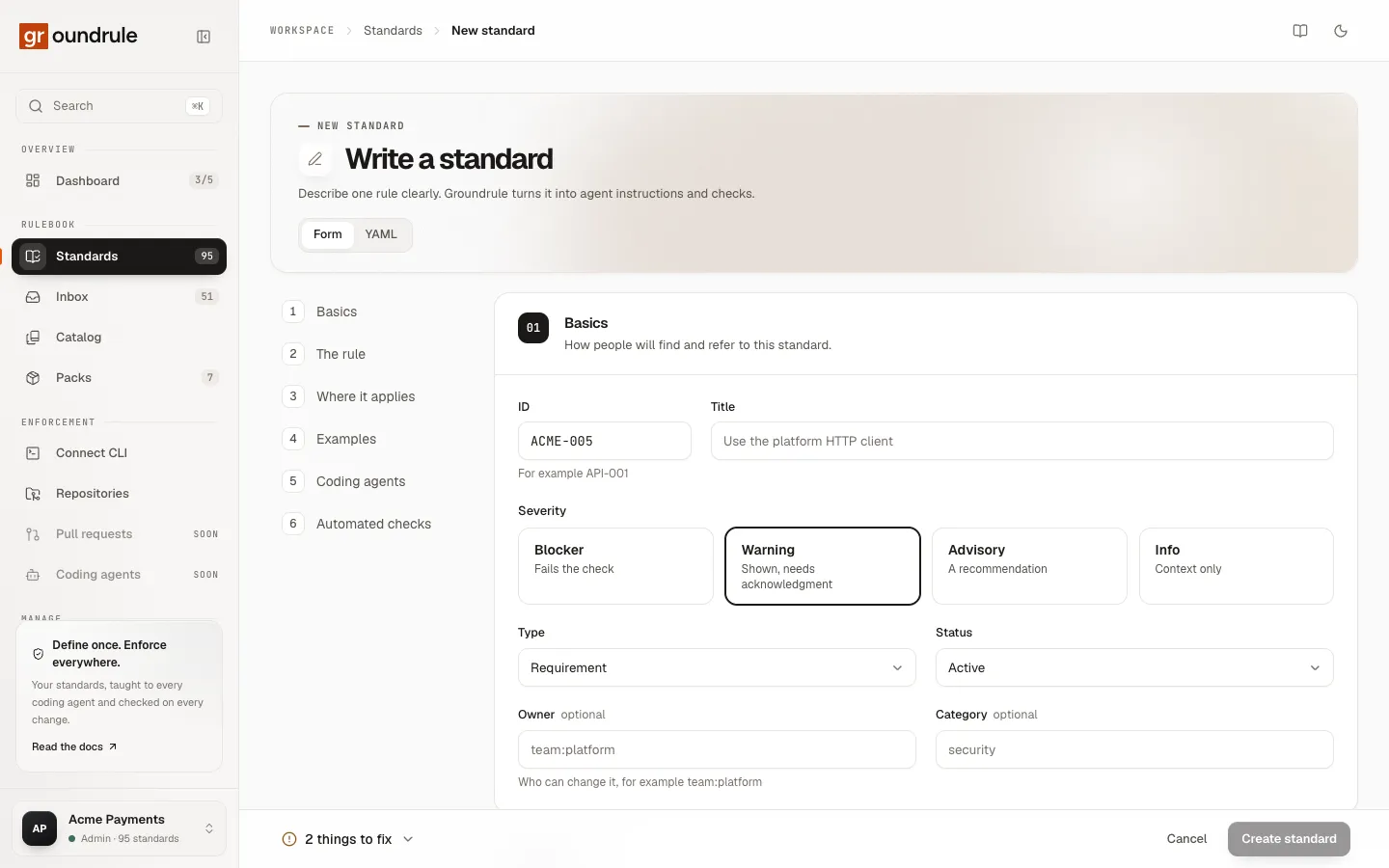
Open Standards and choose New standard. The editor opens, titled Write a standard.
-
Fill in Basics: the title, the severity, and whether it starts as a draft. The ID is already filled in.
-
Write the rule: the requirement, why it exists, and how to fix a violation.
-
Say where it applies, or leave it empty for everywhere.
-
Add examples: at least one Do and one Don’t.
-
Check what agents will read in Coding agents.
-
Add a check if a machine can find violations.
-
Choose Create standard when the bar at the bottom says “Ready to save”.
You should see “ID created”, and the standard’s page opens at version 1.
If Create standard stays disabled, the bar at the bottom says how many things to fix, for example “2 things to fix”. Select it to see the list.
The editor, field by field
Section titled “The editor, field by field”The editor has six sections. The list on the left jumps to each one, and marks a section with a red dot when something in it needs fixing.
1. Basics
Section titled “1. Basics”“How people will find and refer to this standard.”
| Field | What to enter | Default |
|---|---|---|
| ID | A short, stable name: an uppercase prefix, a dash, and a number, such as ACME-005. The editor suggests the next free one, using a prefix from your workspace’s URL name. You can’t change it after saving. |
The next free ID |
| Title | One line, up to 120 characters, for example “Use the platform HTTP client” | Empty |
| Severity | Blocker (“Fails the check”), Warning (“Shown, needs acknowledgment”), Advisory (“A recommendation”), or Info (“Context only”) | Warning |
| Type | What kind of rule it is: Guidance, Requirement, Prohibition, Invariant, Approved tech, Forbidden tech, Process, Repository, or Agent instruction | Requirement |
| Status | Draft (not enforced), Active, Deprecated, or Retired. See Status: draft, active, deprecated, retired. | Active |
| Owner | Optional. A label for who looks after this standard, for example team:platform. It’s shown on the standard’s page; it doesn’t route proposals. |
Empty |
| Category | Optional. A lowercase grouping such as security or payments. Category owners and inbox routing use it. See Teams and owners. |
Empty |
Severity decides what happens at the Enforce stage: by default, only blockers fail groundrule check. See Rollout stages.
2. The rule
Section titled “2. The rule”“Specific enough that a reviewer, or an agent, could check it.”
| Field | What to enter |
|---|---|
| Requirement | Required. “What must, or must not, be true.” For example: “Backend services must use @acme/http-client for outbound HTTP calls.” Name the libraries, classes and folders involved. |
| Why it exists | Optional. “One or two lines. People follow rules they understand.” |
| How to fix a violation | Optional. Shown with every finding, and to agents. |
3. Where it applies
Section titled “3. Where it applies”“Leave everything empty to apply to every file in every repository.”
| Field | What to enter |
|---|---|
| Paths | Glob patterns, one per line, for example src/main/**. The rule applies only to matching files. |
| Except | Patterns to skip, for example **/generated/** |
| Languages | Comma-separated, for example java, typescript |
| Frameworks | Comma-separated, for example spring-boot |
| Repository tags | Comma-separated, for example backend. The rule applies only in repositories with that tag in their .groundrule/config.yaml. |
4. Examples
Section titled “4. Examples”“The most effective way to get engineers and agents to comply.”
Add code under Do (follows the rule) and Don’t (breaks it) with Add. Each example has an optional note, “Add a note (optional)”, which is shown next to it. Remove one with its bin icon.
Examples matter twice:
- Agents and reviewers compare code against them. The first Do and Don’t are written into agent files.
- When the standard has a regular expression check, Groundrule tests the check against them: every Don’t must be caught, and no Do may be flagged.
Write examples that look alike, so the difference is the rule. A forbidden import axios from 'axios' next to an approved import { createClient } from '@acme/http-client' teaches more than two unrelated snippets.
5. Coding agents
Section titled “5. Coding agents”“Delivered through AGENTS.md, CLAUDE.md, Cursor rules, and Copilot instructions.”
| Field | What it does | Default |
|---|---|---|
| Teach this standard to coding agents | When off, the standard isn’t written into agent files. “Turn off for rules that only matter in review.” | On |
| Agent summary | Optional. “Short, direct wording for agents. Defaults to the requirement.” | Empty |
Preview: what agents will read shows the exact lines groundrule sync will write, for example:
- **ACME-005** Use the platform HTTP client · _warning_ Backend services must use @acme/http-client for outbound HTTP calls. (typescript) - Do: `import { createClient } from '@acme/http-client'` - Don't: `import axios from 'axios'`6. Automated checks
Section titled “6. Automated checks”“Without checks, the standard is guidance for agents and reviewers.”
A check lets groundrule check find violations in code. Choose Add check, pick an evaluator in Check 1, and edit its Options. Picking an evaluator fills in example options you can change.
| Evaluator in the menu | Kind | What it checks | Example options |
|---|---|---|---|
| Forbidden dependencies | Deterministic | Dependencies a project must not add | forbid: [axios, got] |
| Pattern in code | Deterministic | A regular expression that must not match (or must match) | pattern: 'console\.log\(' |
| Required or forbidden files | Deterministic | Files that must or must not exist | require: ["CODEOWNERS"] |
| Shape of a change | Deterministic | Files that must change together, such as an entity and a migration | when.changed: ["src/**/entity/**"] with require.added: ["db/migration/*.sql"] |
| Semgrep rules | Static analysis | A Semgrep rule set | rules: p/owasp-top-ten |
| AI review (coming in 0.2) | AI | Not available yet. Don’t use it for rules you need checked today. |
A standard can have more than one check. Remove one with its bin icon. Every option for every evaluator is in Checks.
The YAML view
Section titled “The YAML view”Switch between Form and YAML at the top of the editor. The YAML view shows the whole standard as the same document the CLI reads from .groundrule/standards/. Edits in either view show up in the other.
If the YAML can’t be read, the error appears under the text box, and the form keeps its last valid state. The YAML view is useful for fields the form doesn’t show, such as rationale or references; the form keeps them when you save.
The rule format documents every field.
Validation
Section titled “Validation”The editor checks the standard as you type, with the same validator the CLI uses, so anything the editor accepts, groundrule check accepts too.
The bar at the bottom shows:
- Checking while it validates;
- Ready to save when nothing needs fixing;
- “N things to fix” otherwise. Select it to list each problem with the field it belongs to, such as
spec.requirement.
Errors for ID, Title and Requirement also appear under those fields. Errors in a check’s options appear under that check. On a new standard, errors under fields appear once you start typing; the count in the bar is there from the start.
Common errors:
| Error | Fix |
|---|---|
| “Standard IDs look like AUTH-017: an uppercase prefix, a dash, and a number” | Use a form such as ACME-005. |
| An empty requirement or title | Fill it in. |
| “pattern is not a valid regular expression” | Fix the regular expression in the check’s options. |
| “Invalid escape sequence” | Put the pattern in single quotes. |
| “Options must be key: value pairs.” | Write options as YAML keys and values. |
| “ID already exists. Choose another ID.” | Shown when you save. Pick another ID. |
| “ID is already defined by pack. Choose another ID.” | Shown when you save. A pack you turned on uses that ID. |
If you leave the page with unsaved changes, the browser asks you to confirm.
Status: draft, active, deprecated, retired
Section titled “Status: draft, active, deprecated, retired”| Status | In agent files and check |
Scans and evidence | Rollout panel |
|---|---|---|---|
| Draft (not enforced) | No | Yes, if it has a check | A Draft panel with Publish at and Publish instead |
| Active | Yes, at its stage | Yes | Yes |
| Deprecated | Yes, at its stage. Use it to signal a rule is on its way out. | No | Yes |
| Retired | No | No | Yes |
Publish a draft
Section titled “Publish a draft”-
Open the draft’s page. The Draft panel says “Not in effect” and “Coding agents and CI don’t see drafts.”
-
Scan a repository if the draft has a check:
npx @groundrule/cli scan --upload. The draft’s evidence panel shows what it finds: “Scans test this draft; nothing is in effect yet.” -
Choose Test the check on its examples to confirm the check still catches every Don’t and allows every Do.
-
Choose a stage in Publish at. The default is Observe. The hint under it says what the stage does.
-
Choose Publish.
You should see “ID is live at stage”. Publishing saves a new version with the note “Published at stage”, and the Draft panel is replaced by the rollout panel.
If the check fails its own examples, publishing is refused: “Fix the check before publishing.” Edit the check or the examples, then publish again.
Edit a standard and its versions
Section titled “Edit a standard and its versions”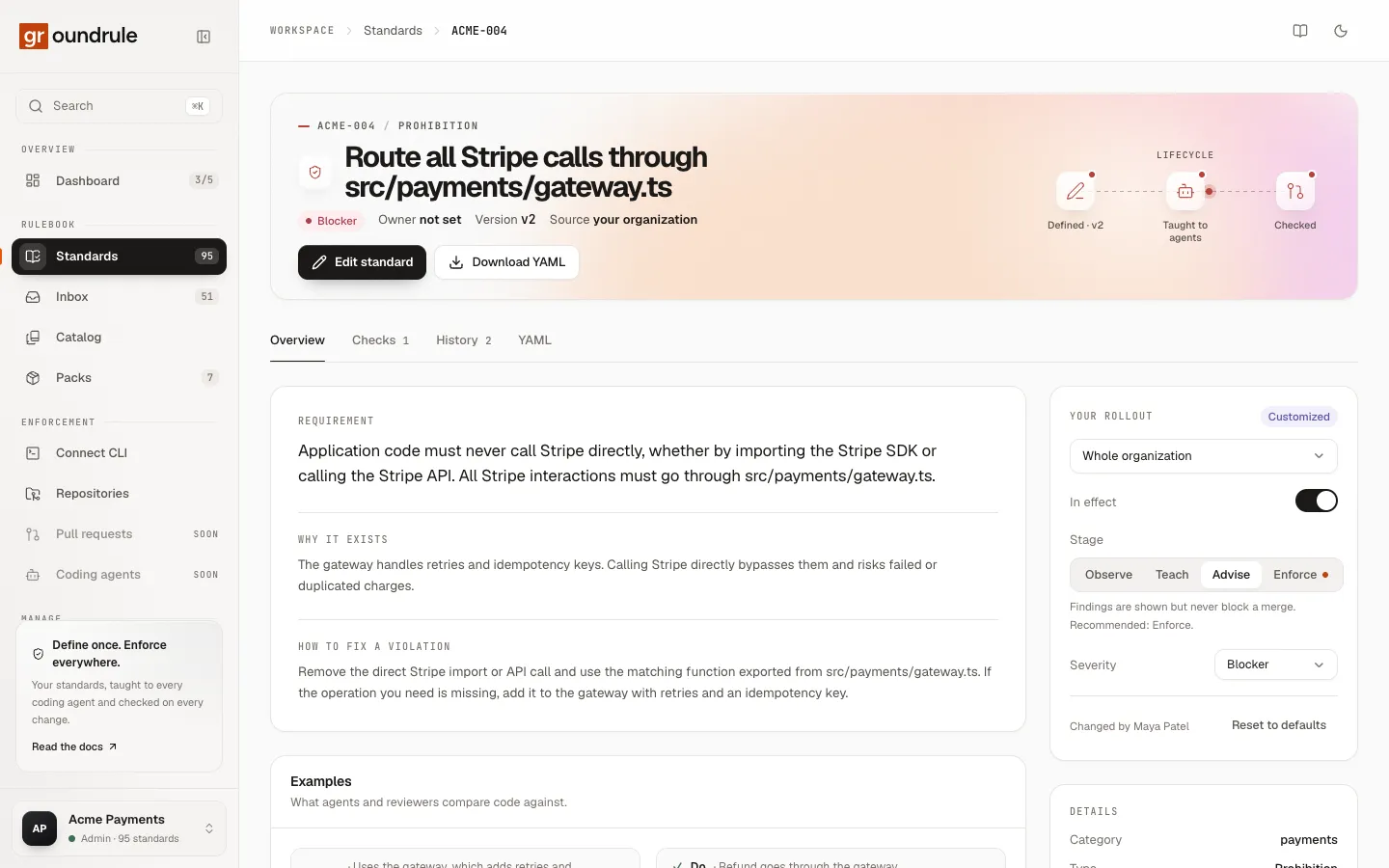
-
Open the standard in Standards and choose Edit standard. The editor opens with “Editing · vN” and “Saving creates version N+1. Earlier versions are kept.”
-
Make your changes. The ID can’t change: “IDs can’t change.”
-
Write what changed in What changed? (optional) in the bottom bar, for example “Exclude generated clients”.
-
Choose Save changes.
You should see “Saved as version N”. If nothing differs from the saved version, you see “No changes to save”, and no version is created.
If someone else saved the standard while you were editing, you see “Someone else just saved this standard. Reload and try again.” Reload, then make your change again.
The History tab lists every version, newest first, with its note (“No description” if none was given), its author, and when it was saved. The first version’s note is “Created”, or “Drafted with AI from a description” for an AI draft.
Other actions on your own standard’s page:
- Download YAML saves the standard as a
.yamlfile, ready for.groundrule/standards/in a repository. - The YAML tab shows the same document.
Standards can’t be deleted. To stop using one, set its status to Retired. To give a rule a new ID, create a new standard and retire the old one.
Related
Section titled “Related”- Describe a rule with AI: a full draft from one sentence.
- Evidence and impact: what your standard finds in your repositories.
- Adopting and tuning rules: change its stage and severity, and set it per team.
- The rule format: every field, for writing standards as files.