API tokens
An API token lets the Groundrule CLI, CI, or a coding agent reach your workspace without a browser. Every token can read the rulebook. A token can also be allowed to upload scans and propose rules. No token can change the rulebook, members, or settings.
There are two ways to get one:
- On your own computer, run
npx @groundrule/cli login. It creates a token for you after you approve it in the browser. See CLI login tokens. - For CI or a server, create one in Settings → API tokens → New token and store it as a secret named
GROUNDRULE_TOKEN.
What a token can do
Section titled “What a token can do”| Permission | Shown as | Lets the token… | Used by |
|---|---|---|---|
Read the rulebook (rulebook:read) |
always included | Fetch the workspace’s rules for this repository, and check who it belongs to | sync, check, standards, explain, doctor, whoami |
Upload scans (scans:write) |
Upload scans | Send scan results to the workspace, and fetch your own rules to test them | scan --upload |
Propose rules (proposals:write) |
Propose rules | Send rule proposals to the inbox | propose, and coding agents through groundrule mcp |
Every token acts as the person who created it. Scans it uploads and rules it proposes are recorded under that person’s name. If that person leaves the workspace or is removed, their tokens stop working.
Any member can create tokens, whatever their role. A token never gives more than reading, uploading scans, and proposing: a viewer’s token and an admin’s token can do the same three things.
Create a token
Section titled “Create a token”-
Open Settings → API tokens and choose New token.
-
Fill in the dialog:
Field Notes Name Where it’s used, so you can recognize it later, such as “GitHub Actions”. Up to 80 characters. Required. Expires 30 days, 90 days (the default), 1 year, or No expiry. Access Read the rulebook is always on (“For groundrule sync and check”). Upload scans is on by default (“For groundrule scan –upload. Can’t change any settings.”). Propose rules is off by default (“For groundrule propose and coding agents (groundrule mcp). Proposals wait in the inbox for a reviewer.”). 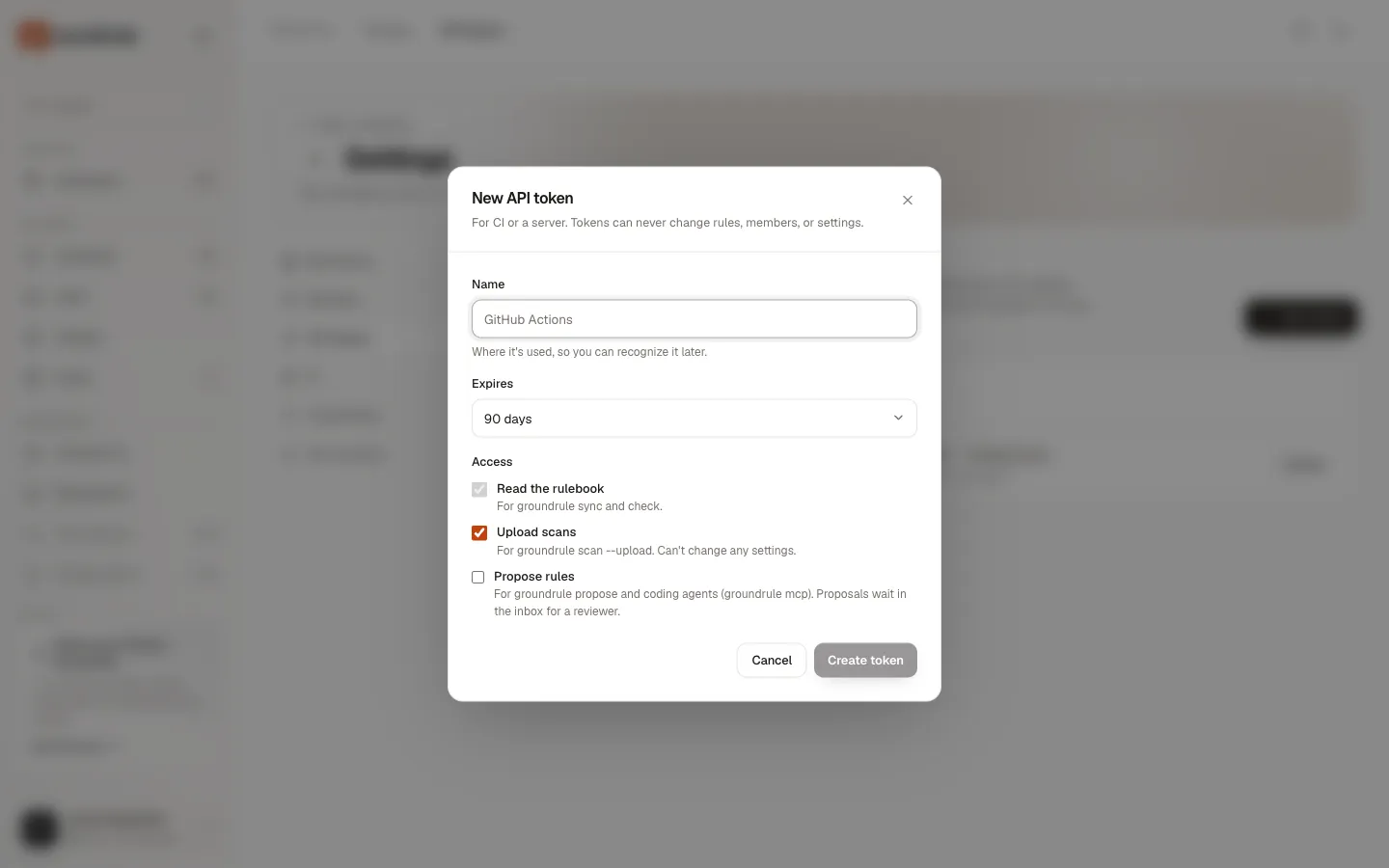
-
Choose Create token.
You should see Copy your token: “This is the only time it’s shown. Store it as a secret, e.g. GROUNDRULE_TOKEN in your CI.” Copy it now. Groundrule stores only a hash, so nobody can show it to you again. If you close the dialog, it asks “Have you copied the token? You won’t see it again.”
The dialog also shows a CI step you can copy:
- run: npx @groundrule/cli sync --check env: GROUNDRULE_TOKEN: ${{ secrets.GROUNDRULE_TOKEN }}If it goes wrong:
| Message | Fix |
|---|---|
| “Name the token, e.g. CI or laptop” | Enter a name. |
| “You have 25 active tokens here. Revoke one you no longer use first.” | Each person can hold 25 active tokens per workspace. Revoke old ones. |
| “Too many attempts. Wait a few minutes and try again.” | You created more than 20 tokens in an hour. |
Use a token in CI
Section titled “Use a token in CI”Store the token as a secret named GROUNDRULE_TOKEN in your CI system, and pass it to each Groundrule step as an environment variable. In GitHub Actions:
- run: npx @groundrule/cli sync --check env: GROUNDRULE_TOKEN: ${{ secrets.GROUNDRULE_TOKEN }}- run: npx @groundrule/cli check --base origin/${{ github.base_ref }} env: GROUNDRULE_TOKEN: ${{ secrets.GROUNDRULE_TOKEN }}GROUNDRULE_TOKEN takes priority over any saved login. The repository’s .groundrule/config.yaml says which workspace to use; the token must belong to that workspace. If it belongs to another one, the CLI stops with “This token is for …, but this repository uses …. Run groundrule login and approve it for ….”
For a CI job that also uploads scans, for example a nightly scan --upload, keep Upload scans on. A token for sync --check and check alone needs only Read the rulebook.
The full CI setup, including GitLab and other runners, is in Run Groundrule in CI.
CLI login tokens
Section titled “CLI login tokens”npx @groundrule/cli login signs one computer in:
- The CLI prints a one-time code, such as
ABCD-EFGH, and opens your browser at the approval page. The code is valid for 10 minutes. - In the browser, check that the code matches your terminal, choose the workspace, and choose Approve. The page warns: “Only approve if you just ran groundrule login yourself. For 90 days the CLI can then read this workspace’s rulebook, upload scan results, and propose rules to the inbox. It can’t change the rulebook or settings, and you can revoke it in API tokens.”
- The CLI saves the token and says “Signed in to Acme Payments (acme-payments) as you@acme.com”.
The token it creates:
| Property | Value |
|---|---|
| Name | “CLI login · groundrule on” followed by your computer’s name |
| Badge in the list | CLI login (tokens made in the dashboard say Created here) |
| Permissions | All three: read the rulebook, upload scans, propose rules |
| Expiry | 90 days |
| Saved in | ~/.config/groundrule/credentials.json (or $XDG_CONFIG_HOME/groundrule/, or %APPDATA%\groundrule on Windows), readable only by you |
Running login again for the same workspace replaces the saved token and revokes the old one. npx @groundrule/cli logout revokes the token and forgets it. If the CLI can’t reach Groundrule while logging out, it says so; revoke the token in Settings → API tokens instead.
Choosing Deny on the approval page connects nothing: “Request denied”.
More: CLI quickstart and Environment and files.
See your tokens
Section titled “See your tokens”Settings → API tokens has two lists:
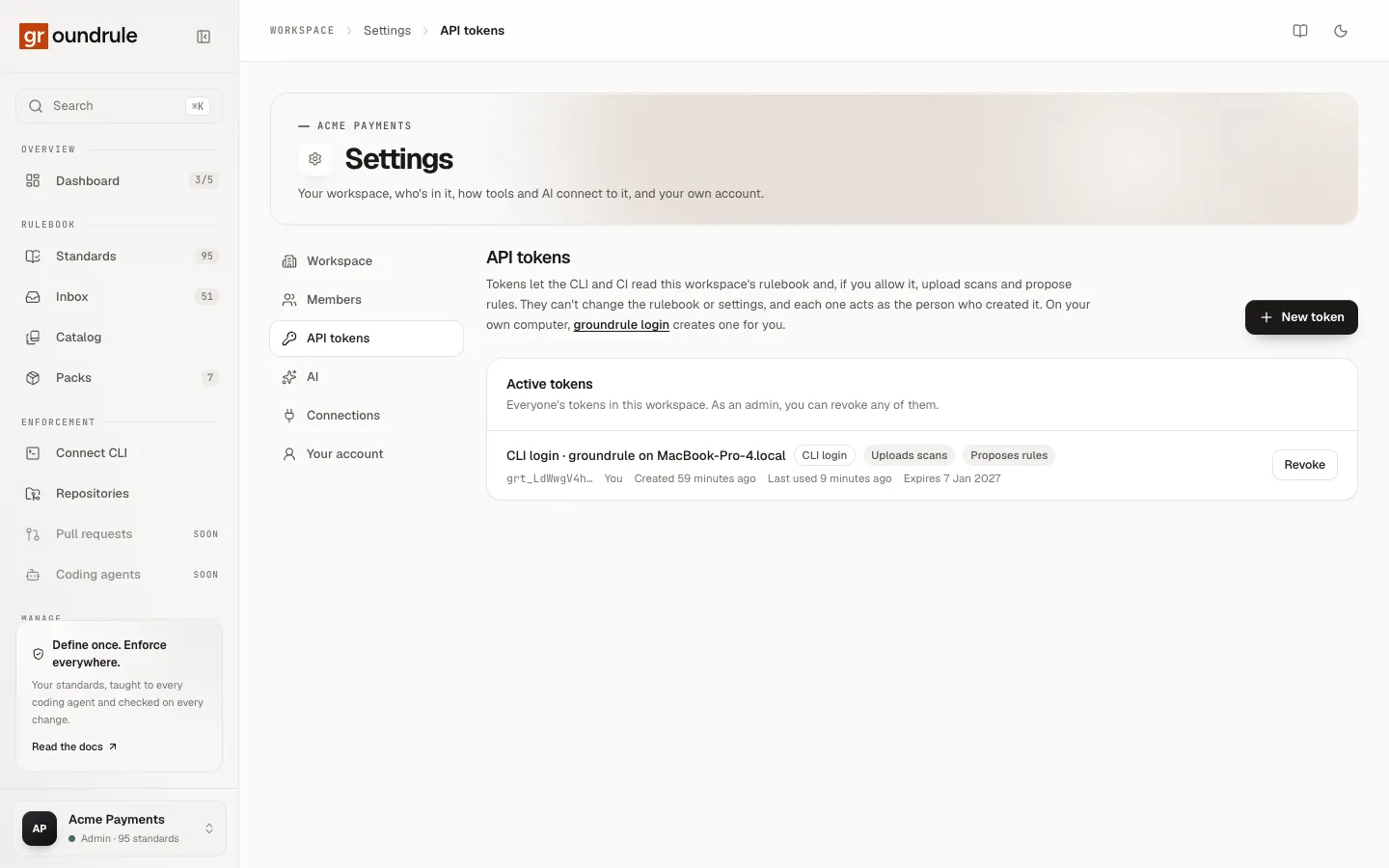
- Active tokens. For most people, “Your tokens in this workspace.” Admins and platform admins see “Everyone’s tokens in this workspace. As an admin, you can revoke any of them.” and each token’s owner.
- Expired and revoked, “Kept for your audit trail.”
Each token shows:
- its name and badges: CLI login or Created here, Upload scans, Propose rules, and Revoked or Expired;
- the first characters of the token, followed by
…, to match it against a secret; - when it was created, and when it was last used, or Never used;
- when it expires, or No expiry.
Revoke a token
Section titled “Revoke a token”- Find the token under Active tokens.
- Choose Revoke and confirm: “Revoke … ? Anything using it stops working immediately.”
You should see “Revoked” followed by the token’s name. The token moves to Expired and revoked. A CLI or CI job that uses it fails on its next request with “GROUNDRULE_TOKEN isn’t valid. It may have expired or been revoked; create a new one in Groundrule → Settings → API tokens.” (for CI), or “Your sign-in to acme-payments has expired or was revoked. Run groundrule login again.” (for a saved login).
You can revoke your own tokens. Admins and platform admins can revoke anyone’s.
Keep tokens safe
Section titled “Keep tokens safe”- Treat a token like a password. Don’t commit it, paste it into chat, or put it in a URL.
- Give each CI system its own token with a clear name, so you can revoke one without breaking the others.
- Prefer an expiry. No expiry suits only tokens you review regularly.
- Turn on only the permissions a job needs. Most CI jobs need only Read the rulebook.
- Check Last used from time to time, and revoke tokens that are Never used or that you don’t recognize.
- If a token leaks, revoke it first, then create a new one.