A tour of the dashboard
This page walks through the dashboard at app.groundrule.dev, section by section, so you know where everything is and what each page is for. Each section links to the page that covers it in full.
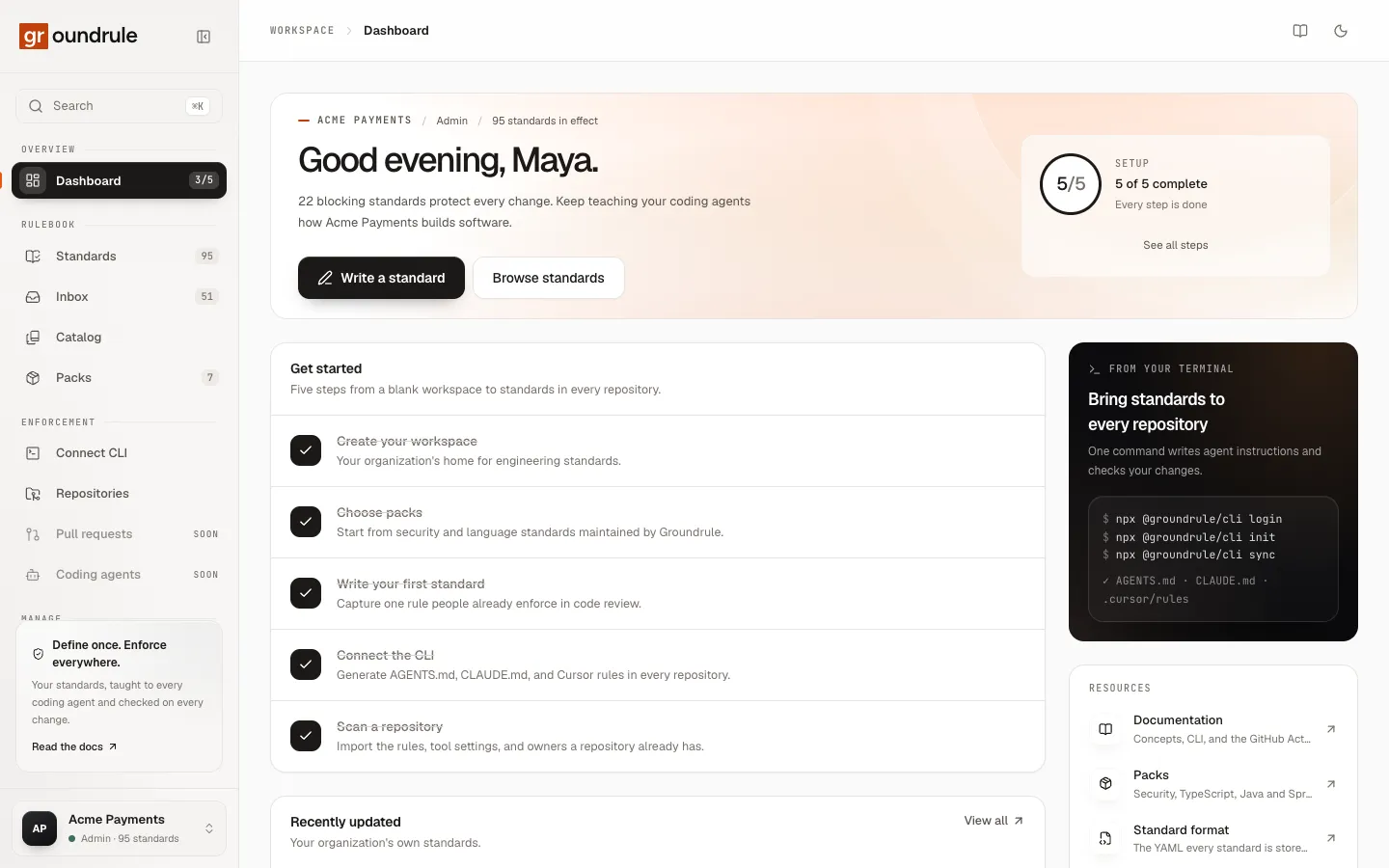
The dashboard has three fixed parts:
- The sidebar on the left: search, navigation in four groups, and the account menu at the bottom.
- The top bar: where you are (for example Settings › Members), a link to these docs, and the light and dark theme switch.
- The page itself.
The sidebar
Section titled “The sidebar”| Group | Item | What it’s for |
|---|---|---|
| Overview | Dashboard | Your workspace’s home: setup progress and recent changes |
| Rulebook | Standards | Every rule in effect, yours and from packs |
| Inbox | Proposals waiting for a decision | |
| Catalog | Every standard Groundrule maintains, ready to adopt | |
| Packs | Turn packs on and off | |
| Enforcement | Connect CLI | Commands to connect a repository |
| Repositories | Scanned repositories and what each one already has | |
| Pull requests | Marked Soon: not built yet | |
| Coding agents | Marked Soon: not built yet | |
| Manage | Teams | Teams, repositories, and category owners |
| Settings | Workspace, members, API tokens, AI, connections, your account |
Small counts next to items tell you what needs attention: setup progress next to Dashboard (for example 2/5), the number of standards next to Standards, open proposals plus rules ready to move forward next to Inbox, and packs turned on next to Packs.
To collapse the sidebar to icons, choose the collapse button at the top, or press ⌘\ (Ctrl+\ on Windows and Linux). Press it again to expand. On a narrow window, the sidebar becomes a menu you open from the top bar.
Dashboard
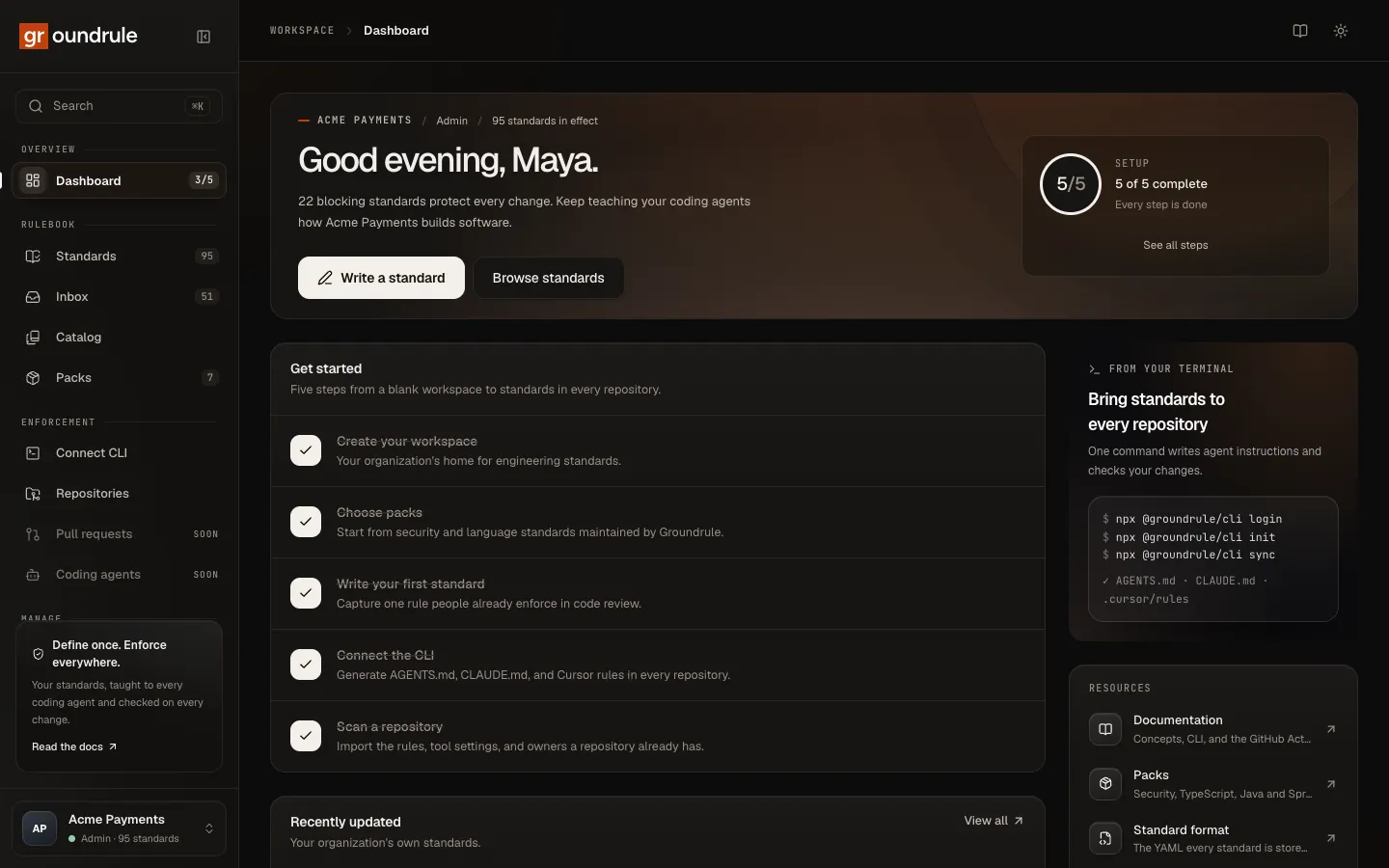
Section titled “Dashboard”The home page greets you and shows the workspace name, your role, and how many standards are in effect. The Setup card tracks five steps, from creating the workspace to scanning a repository, with a button for the next one. Below it:
- Get started: the five steps, each linking to where it’s done.
- Recently updated: your workspace’s own standards, newest first.
- From your terminal: the commands that connect a repository.
- Resources: links to these docs, the packs, the standard format, and all standards.
The buttons Write a standard and Browse standards are always at the top. More: Your first dashboard.
Standards
Section titled “Standards”“Every rule your repositories and coding agents follow, from your own team and from the packs you use.”
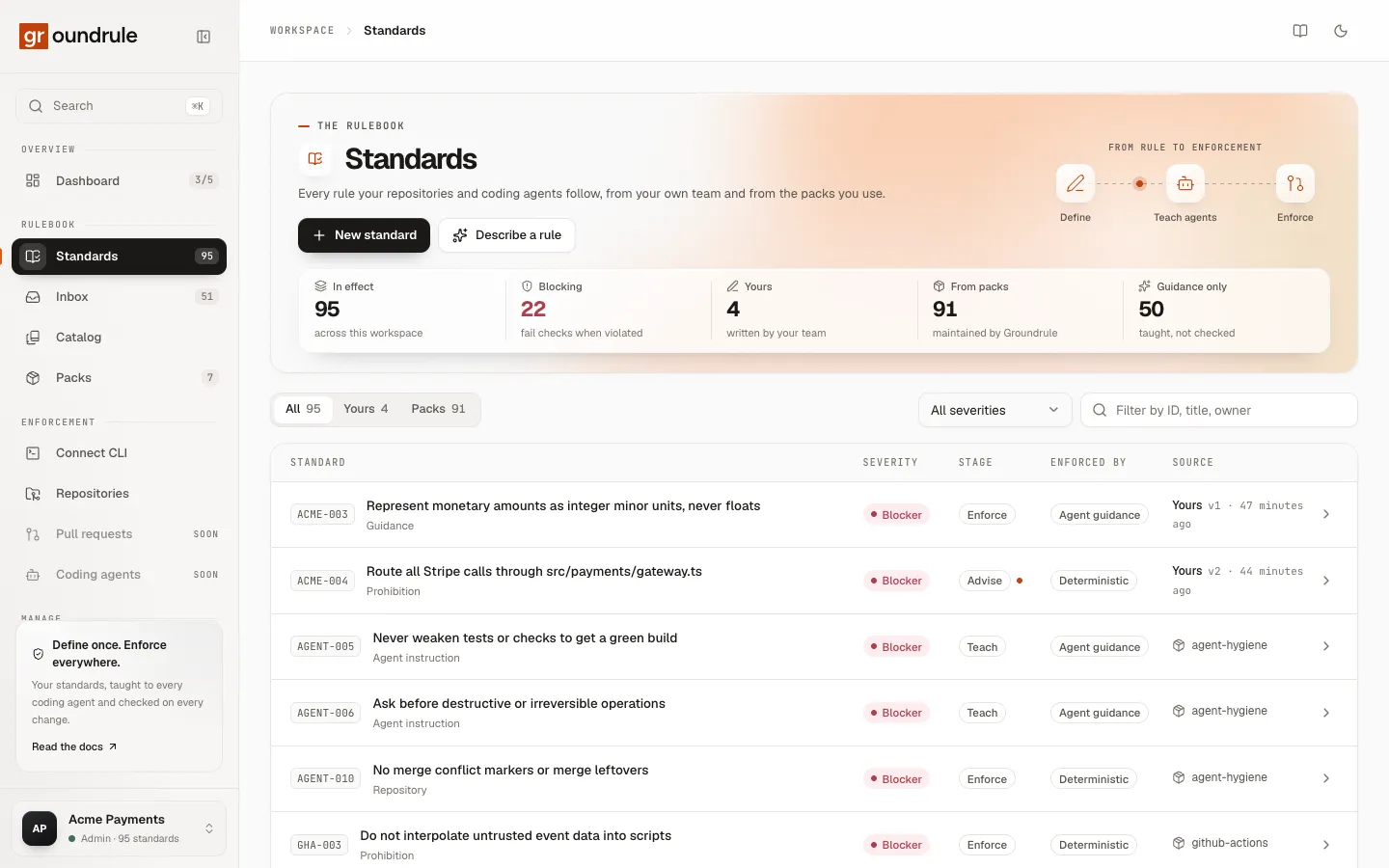
- Counts at the top: In effect, Blocking (blockers that fail checks), Yours, From packs, and Guidance only (taught to agents, not checked).
- Tabs and filters: All, Yours, Packs; a severity filter; and a search by ID, title or owner.
- The list: each standard’s ID and title, Severity, Stage, Enforced by (Agent guidance or Deterministic), and Source (yours with its version, or the pack it comes from).
- New standard opens the editor. Describe a rule lets AI write a standard from a sentence, when AI is on.
Open a standard to see its requirement, examples, evidence from your repositories, and its rollout panel, where you set its stage and severity for the organization, a team, or a repository.
More: Write a standard, Describe a rule, Rollout stages.
The page is titled Review inbox. “What your repositories and documents already say, enforce, and own, as proposals. Accepting does the real thing: a new standard, an adopted rule, or an owner. Nothing changes until someone decides.”
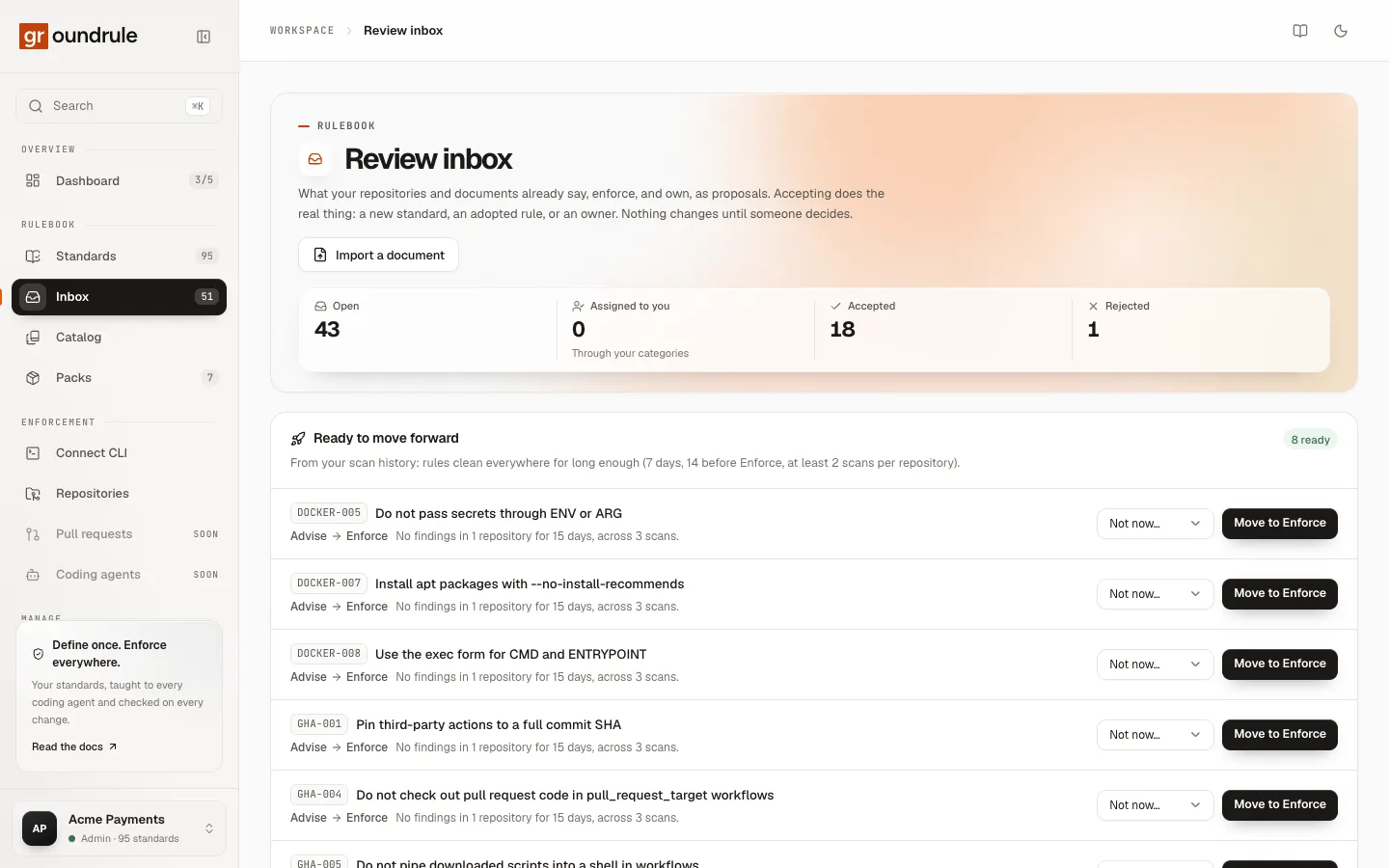
- Counts: Open, Assigned to you (through the categories you or your team own), Accepted, Rejected.
- Ready to move forward: rules that have been clean in your repositories long enough to move to the next stage, each with Move to a stage, or Not now… to hide it for a while.
- Documents: documents you imported and their progress.
- Proposals: instructions, tool settings and ownership suggestions, with filters and bulk actions.
- Import a document reads a file, pasted text, a page from a connected app, or pull-request reviews.
Everyone can read the inbox. Only admins, platform admins and standard owners see Accept and Reject.
More: The review inbox, Import documents, Promotions.
Catalog
Section titled “Catalog”“Every standard Groundrule maintains, each with its reasoning, examples, noise rating, and compliance links.”
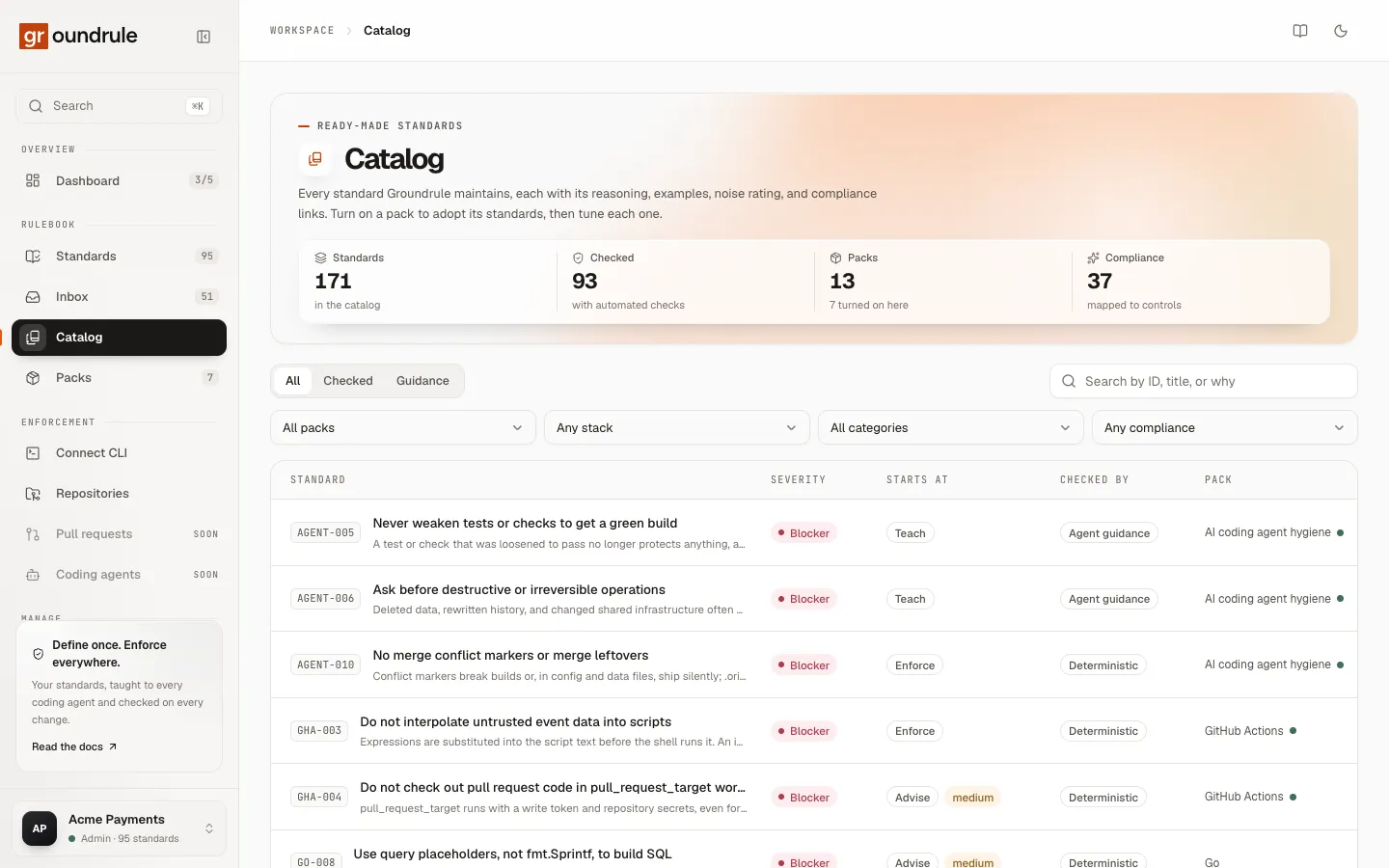
- Counts: standards in the catalog, how many have automated checks, packs (and how many are on here), and compliance mappings.
- Tabs: All, Checked, Guidance.
- Filters: pack, stack, category, and compliance framework (SOC 2, ISO 27001, OWASP ASVS, PCI DSS, HIPAA, NIST SSDF), plus a search by ID, title, or why.
- The list: each standard’s severity, the stage it Starts at, a noise rating where it isn’t low, how it’s checked, and its pack.
Open a standard to read its requirement, why it exists, and its known false positives, with Open in your rulebook when its pack is on.
More: The catalog.
“Proven standards maintained by Groundrule. Turn a pack on and every repository and agent inherits it.”
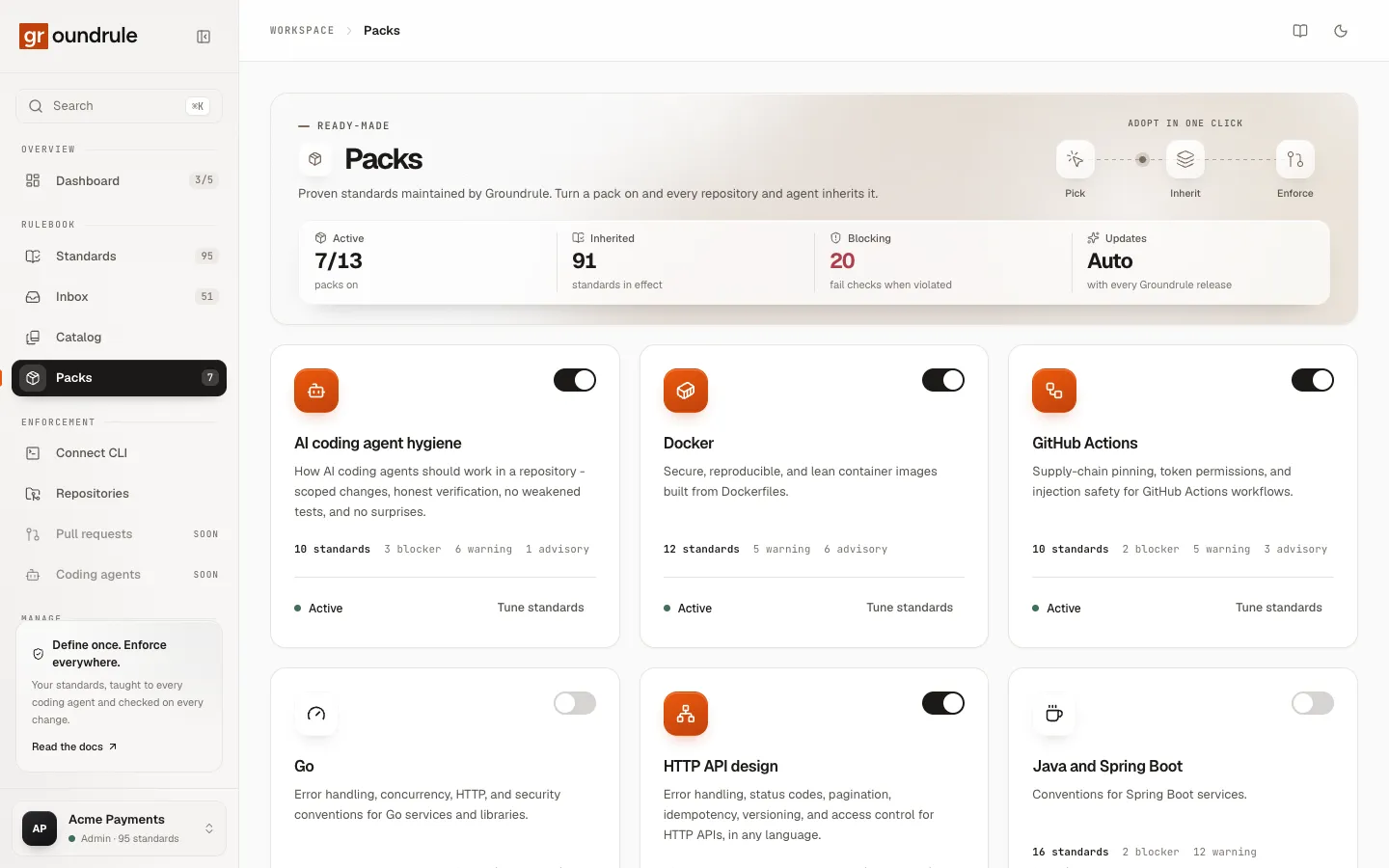
The counts at the top show how many packs are on, how many standards they add, and how many of those are blockers. Each pack card shows its description, its standards by severity, a switch to turn it on or off, and Tune standards. Open a pack to see its standards, turn individual ones off, and mark a new pack version as reviewed. Admins and platform admins choose packs; others see “Ask an admin to change which packs are on.”
More: Packs, Adopting rules.
Connect CLI
Section titled “Connect CLI”The page is titled Connect the CLI. It shows the four steps to connect a repository, with your workspace’s URL name already filled in:
- Sign in from your computer:
npx @groundrule/cli login - Connect the repository:
npx @groundrule/cli init --org acme-payments - Write the rules for your coding agents:
npx @groundrule/cli sync - Check every pull request in CI: steps for GitHub Actions, using a token from API tokens.
Each command has a copy button. More: CLI quickstart.
Repositories
Section titled “Repositories”“What each repository already has, and how every catalog rule would do there today. Scans observe; they never change or enforce anything.”
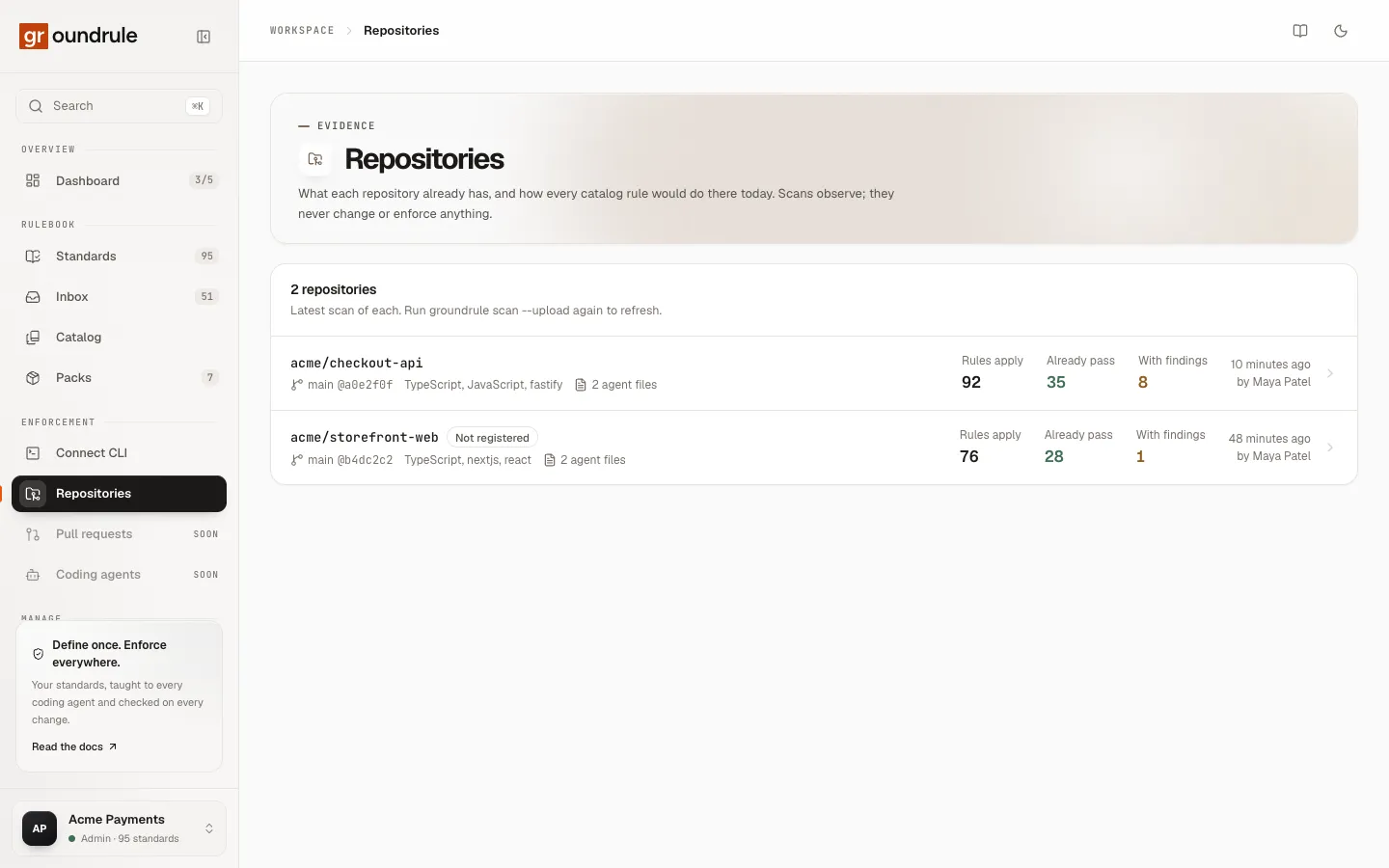
Each scanned repository shows its branch and commit, the detected stack, how many agent files it has, and three counts: Rules apply, Already pass, With findings. A repository that scans have seen but no one has added under Teams is marked Not registered. Open one to see its latest scan, rule by rule.
The list is empty until someone runs npx @groundrule/cli scan --upload. More: Scan repositories.
Pull requests and Coding agents
Section titled “Pull requests and Coding agents”Both are marked Soon and can’t be opened. Checking pull requests directly on GitHub, and a page for coding agents, are not built yet. Today, checks run wherever you run the CLI, including CI, and coding agents get your rules through the files sync writes and the MCP server.
The page is titled Teams & repositories. “Teams and repositories can make any rule stricter than the organization: a later stage, a higher severity, or extra guidance for their agents. They can’t loosen one.”
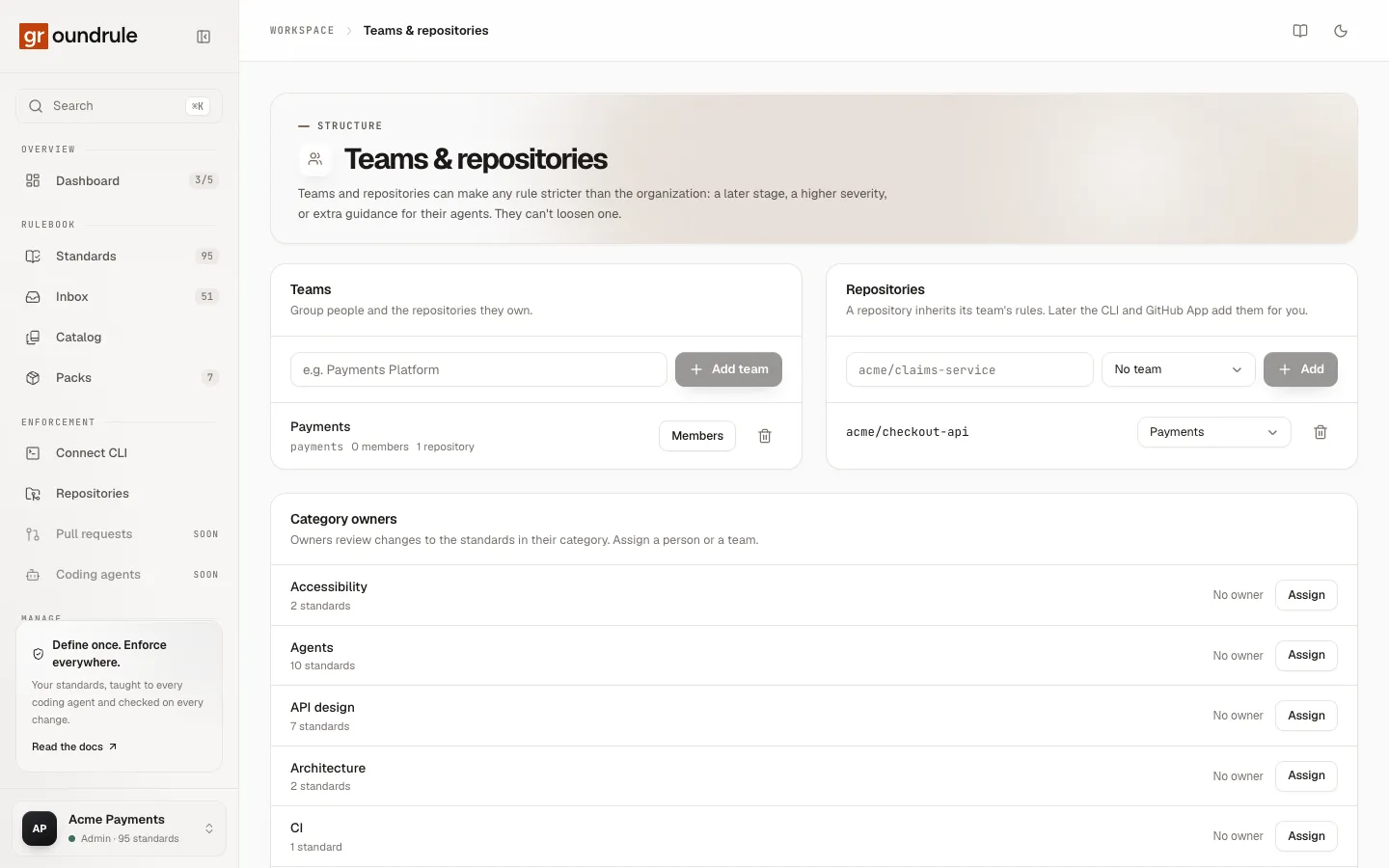
- Teams: “Group people and the repositories they own.” Add a team, and choose Members to pick its people.
- Repositories: register a repository by its
owner/nameand assign it to a team. Team settings apply to the repositories a team owns. - Category owners: “Owners review changes to the standards in their category. Assign a person or a team.” Proposals in a category are routed to its owners.
Admins and platform admins make changes here; everyone else can look. More: Teams and owners.
Settings
Section titled “Settings”Six sections, in this order:
| Section | What’s there | Page |
|---|---|---|
| Workspace | Name, URL name, your stack, who can be invited, leave | Workspace settings |
| Members | People, roles, invitations | Members and roles |
| API tokens | Tokens for the CLI and CI | API tokens |
| AI | Turn AI on, budget, retention, usage | AI settings and usage |
| Connections | GitHub, Notion, Google Docs, Confluence | Connections |
| Your account | Profile, password, ways to sign in, sessions | Sign in and your account |
The command palette
Section titled “The command palette”Press ⌘K (Ctrl+K on Windows and Linux), or choose Search at the top of the sidebar, to open the command palette. Type to filter; use the arrow keys to move and Enter to open. Press Esc, or ⌘K again, to close it.
It finds:
| Group | Items |
|---|---|
| Go to | Dashboard, Standards, Packs, Catalog, Teams & repositories |
| Actions | Write a new standard; Toggle light and dark theme |
| Standards | Every standard in your rulebook, by title, ID, category or owner. With nothing typed, the first dozen are listed. |
| Workspaces | Switch to each other workspace you belong to |
Search words also match a few synonyms: for example, “repos” finds Teams & repositories, and “dark” finds the theme switch.
Light and dark theme
Section titled “Light and dark theme”Choose the moon or sun icon in the top bar to switch between light and dark. The sign-in and onboarding pages have the same switch, and the command palette has Toggle light and dark theme.
The account menu
Section titled “The account menu”The bottom of the sidebar shows the workspace you’re in, your role, and how many standards are in effect. Choose it to open the account menu:
- your name and email;
- Workspaces: every workspace you belong to, with your role in each; choose one to switch;
- New workspace: create another one, through the same onboarding;
- Your account: your profile, password and sessions;
- Sign out.