Adopting and tuning rules
Every rule in your rulebook has a page, and every page has a rollout panel. That is where you decide whether the rule is on, how far it is rolled out, and how serious a violation is, for the whole organization, one team, or one repository. For pack rules, you can also change the wording and where the rule applies, without copying the rule. This page covers all of it.
Who can change rules: admins, platform admins and standard owners. Everyone else sees the same page with the settings as labels.
The rule page
Section titled “The rule page”Open Standards and select a rule, or choose Open in your rulebook in the catalog.

The header shows the ID and type, the title, the severity, the owner, the version, and the Source: the pack’s name, or “your organization” for your own standards. The lifecycle on the right shows whether the rule is taught to agents and checked.
The tabs:
| Tab | What it shows |
|---|---|
| Overview | Everything below |
| Checks | Each check and its options. A rule with no check says “Guidance only”. |
| History | Your own standards only: every version, its note, author, and time |
| YAML | The rule as a YAML document, the same format the CLI reads |
The Overview tab:
| Section | What it holds |
|---|---|
| Requirement, Why it exists, How to fix a violation | The rule, as it applies in your workspace, with your wording if you changed it |
| Examples | What to do (Do) and what not to do (Don’t), as code |
| Evidence from your repositories | What the rule finds in your scanned repositories. See Evidence and impact. |
| Customize for your organization or Yours vs upstream | Pack rules only. See Change a pack rule’s wording. |
| Your rollout | The rollout panel, described below |
| Details | Category, type, the category’s Owners, and Enforced by (Deterministic, Static analysis, or Agent guidance) |
| Applies to | Paths, exceptions, languages, frameworks, and tags, or “Every file in every repository.” |
| What agents read | The sentence coding agents get. “Not delivered to coding agents.” if the rule isn’t taught. |
| Adopting it | Pack rules: Start at, Expected noise, Known false positives, and Recommended for |
| Supports compliance, References | Compliance controls and links, when the rule has them |
The rollout panel
Section titled “The rollout panel”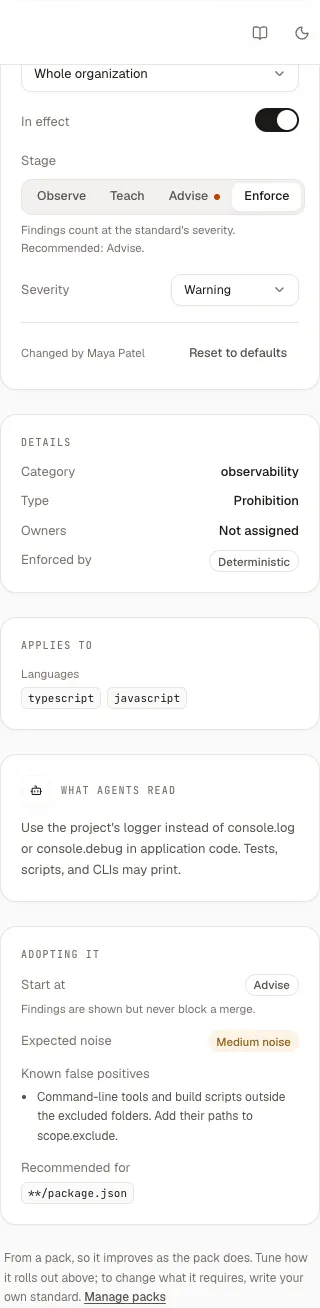
| Setting | Options | Notes |
|---|---|---|
| Scope menu | Whole organization, each team, each repository | Appears once you have at least one team or registered repository. See Teams and owners. |
| In effect | On or off | Turning a rule off asks Why is it off? The reason needs at least 3 characters. |
| Stage | Observe, Teach, Advise, Enforce | A dot marks the recommended stage. The hint underneath says what the stage does. See Rollout stages. |
| Severity | Info, Advisory, Warning, Blocker | When yours differs from the pack’s, the panel shows “Upstream: severity”. |
Every change saves at once. You should see “Rollout updated”.
When a setting comes from a level above the one you’re viewing, the panel says so. For example, a team’s view might read “Findings count at the standard’s severity · set by the organization.”
At the bottom, the panel shows who last changed the rule at this level (“Changed by Maya Patel”) and Reset to defaults.
Turn a rule off
Section titled “Turn a rule off”-
Choose the scope in the scope menu, if your workspace has teams or repositories.
-
Turn off the In effect switch. A box asks Why is it off?
-
Write the reason, for example “TLS is terminated by the service mesh”.
-
Choose Turn off.
You should see “Rollout updated”, and the panel shows “Off: reason”. The reason is shown to everyone who opens the rule, and it is recorded in the audit log. The next groundrule sync removes the rule from agent files, and groundrule check stops running it.
If the reason is shorter than 3 characters, Turn off stays disabled.
Change the stage or severity
Section titled “Change the stage or severity”Choose a stage in Stage, or a severity in Severity. The change applies to the scope shown in the scope menu.
Two things to know about severity and stage together:
- At Enforce,
groundrule checkfails only on blockers by default. A warning at Enforce is reported but doesn’t fail. To stop merges, raise the severity to Blocker. - At Advise, findings never fail a check: blockers are reported as warnings.
Rollout stages has the full table.
Reset to defaults
Section titled “Reset to defaults”Reset to defaults removes everything set at the level you’re viewing: on or off, stage, severity, and any wording changes. The rule then follows the level above: the team follows the organization, and the organization follows the pack. You should see “Back to the defaults”.
The button appears only when something is set at this level.
Stricter, never looser
Section titled “Stricter, never looser”The organization can set anything: turn a pack rule off, lower its severity, or start it at an earlier stage. A team or a repository can only make a rule stricter than the levels above it:
| A team or repository can | It can’t |
|---|---|
| Turn on a rule the organization turned off | Turn off a rule that is on above it |
| Move a rule to a later stage | Move it to an earlier stage |
| Raise its severity | Lower its severity |
| Change its requirement, how to fix it, or where it applies |
A repository inherits its team’s settings, and the team inherits the organization’s. So a repository can’t go below its team either.
When you try a looser change, nothing is saved, and the panel lists the reason. The exact messages, for a team (a repository reads “its team and organization” and “A repository…”):
| What you tried | Message |
|---|---|
| Turning the rule off | “This rule is on for the organization. A team can’t turn it off; ask an org admin, or record an exception once exceptions are available.” |
| An earlier stage | “The organization uses advise. A team can only keep it or move it further (observe → teach → advise → enforce).” |
| A lower severity | “The organization uses warning. A team can only keep or raise it.” |
Other messages you might see:
| Message | Why |
|---|---|
| “Say why it’s off, so reviewers and auditors know.” | A rule was turned off without a reason. |
| “Say why it’s off, in a few words.” | The reason is shorter than 3 characters. |
| “Someone else just changed this rule. Reload and try again.” | Two people saved at the same moment. |
To loosen a rule for one team or repository, change the organization’s setting. Recording an exception for one repository from the dashboard isn’t available yet. In a repository, you can record exceptions in .groundrule/exceptions.yaml; see Overrides and exceptions.
Change a pack rule’s wording
Section titled “Change a pack rule’s wording”You can adapt a pack rule to your codebase without copying it. Only what you change is stored. Everything else keeps following the pack, including future updates.
-
Open the pack rule’s page. Under the evidence, find Customize for your organization.
-
Choose Customize. A window opens: Customize ID.
-
Change the fields you need:
Field What it changes Only these paths Where the rule applies. One glob per line. Empty means everywhere. Except these paths Paths the rule skips, for example scripts/**Requirement The rule’s wording How to fix The fix shown with each finding What agents read The sentence written into agent files. “Written for coding agents. Defaults to the requirement.” Why you changed it Optional. “Shown to reviewers and in the audit log.” -
Choose Save customizations.
You should see “Customizations saved”. The panel’s title changes to Yours vs upstream, and it lists each field you changed: the pack’s version struck through on the left, yours on the right. If a team or repository also has its own guidance, the panel adds “Also customized for names.”
The changed wording reaches agent files on the next groundrule sync, and the changed paths apply to the next groundrule check and scan.
If a change would make the rule invalid, nothing is saved, and the window lists why, field by field, for example “spec.requirement: With these overrides: …”.
Customizing changes the organization’s version. These aren’t available in the dashboard yet:
- changing a pack rule’s code examples;
- adding team-specific or repository-specific wording.
To change what a pack rule fundamentally requires, write your own standard instead. See Write a standard.
Go back to upstream
Section titled “Go back to upstream”- For one field: open Customize, set the field back to the pack’s text, and save. When nothing differs from the pack, you see “Back to upstream”.
- For everything at once: choose Reset to defaults in the rollout panel, with Whole organization selected. This also resets the rule’s on or off, stage, and severity.
Your own standards
Section titled “Your own standards”Your own standards have the same rollout panel. A few differences:
- They start at Enforce when you create them as Active. To start lower, save the standard as a draft and publish it at the stage you choose, or change the stage in the rollout panel after you create it. See Write a standard.
- You edit them directly with Edit standard. There is no “yours vs upstream”, because you are upstream. Every edit creates a new version.
- Drafts have no rollout panel. A draft’s page shows a Draft panel instead, with Publish at and Publish.
Related
Section titled “Related”- Rollout stages: what each stage does, and what fails a check.
- Teams and owners: create the teams and repositories the scope menu lists.
- Evidence and impact: see what a change would do before you make it.