Promotions
A promotion is a suggestion to move a rule to its next stage: Observe to Teach, Teach to Advise, or Advise to Enforce. Groundrule makes the suggestion when your scan history shows the rule has been clean everywhere for long enough. You promote it with one click, or hide the suggestion for a while. Nothing moves on its own.
This page explains the policy, the Ready to move forward section of the inbox, how to promote or hide a suggestion, what Needs attention means, and how to keep scans flowing so suggestions appear.
The policy
Section titled “The policy”A rule is ready for its next stage when all of these hold:
| Condition | Value |
|---|---|
| No findings in any repository it applies in | For 7 days before Teach or Advise, and 14 days before Enforce |
| Scans of each of those repositories | At least 2, within the history Groundrule looks at |
| History looked at | The last 45 days |
| The rule | Is on, has a check, and isn’t a draft |
The clean period counts from the repository that became clean most recently. If one repository had findings until three days ago, the rule has been clean everywhere for three days.
Rules without a check (agent guidance) can’t build evidence, so they never get suggestions. Drafts don’t either; publish them at the stage you choose. Rules at Enforce have no next stage.
Ready to move forward
Section titled “Ready to move forward”Suggestions appear at the top of Inbox, in a section titled Ready to move forward, with “From your scan history: rules clean everywhere for long enough (7 days, 14 before Enforce, at least 2 scans per repository).” A label shows how many are ready, for example “8 ready”. The section only appears when there is something in it.
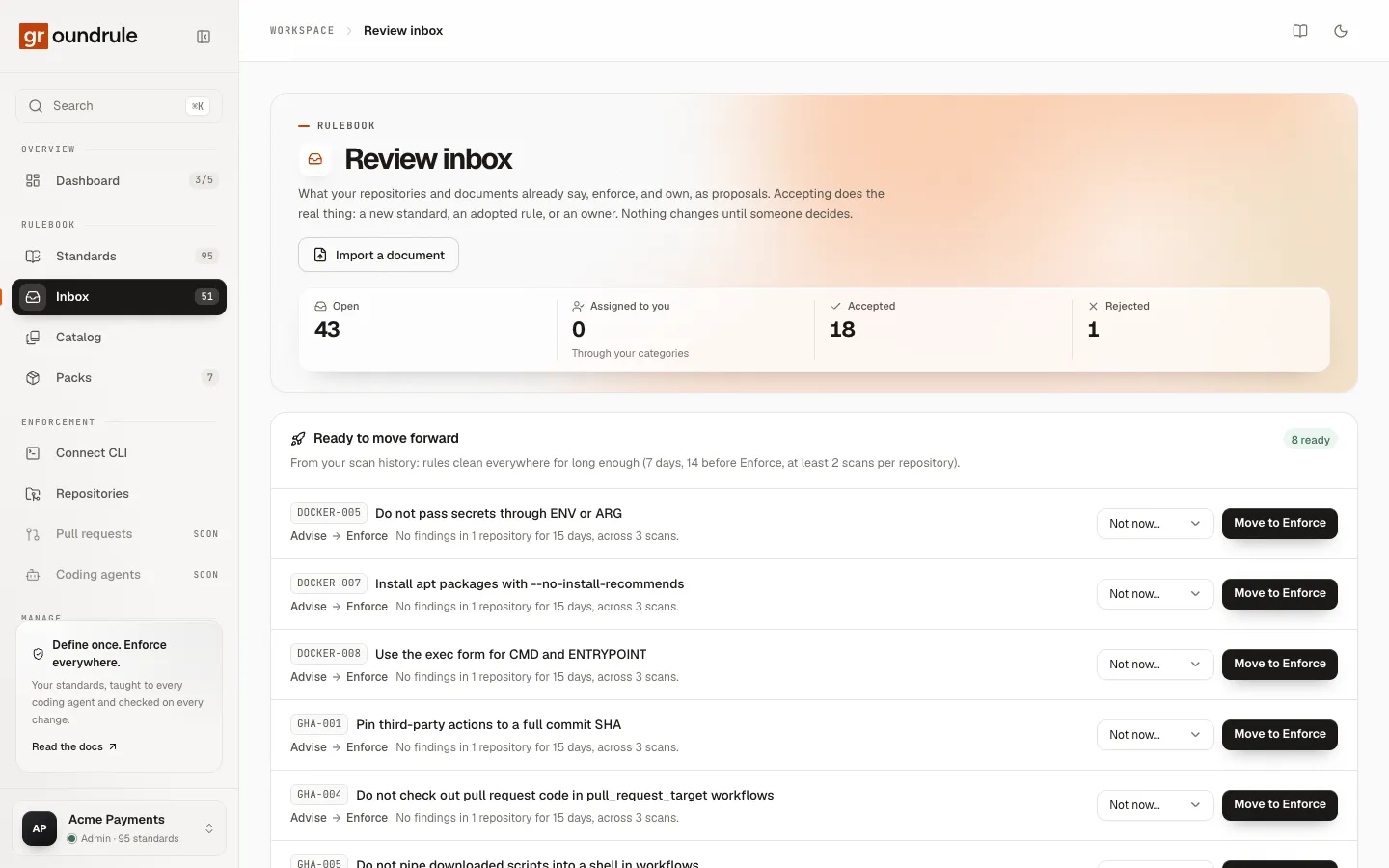
Each suggestion shows:
- the rule’s ID and title, which open its page;
- the move, such as “Advise → Enforce”;
- the reason, for example “No findings in 1 repository for 15 days, across 3 scans.” When the rule had findings at the start of the period, it adds “(down from 4)”.
If nothing is ready, the section says “Nothing is ready yet. Keep scanning; suggestions appear here.”
Almost there
Section titled “Almost there”Below the ready list, Almost there · N lists rules that are on their way. Select it to expand. Each shows why it isn’t ready yet:
| Reason | Meaning |
|---|---|
| “Clean in 2 repositories so far; 4 more days to go.” | No findings now, but not for long enough. A bar shows the progress. |
| “Clean in 2 repositories so far; needs 2 scans in every repository.” | No findings now, but some repository has been scanned only once. |
| “3 findings left in 1 repository, down from 9.” | Findings are going down, but some remain. |
Needs attention
Section titled “Needs attention”Needs attention lists rules at Advise or Enforce that picked up new findings in a repository where they were clean before, for example “2 new findings in 1 repository that were clean before. acme/checkout-api”. These rules already run in groundrule check, so the findings are in CI output too. Open the rule to see where they are. See Evidence and impact.
The same notices appear on each rule’s page, above the impact preview: “Ready for stage”, “Working toward stage”, or “New findings at stage”.
Promote a rule
Section titled “Promote a rule”Admins, platform admins and standard owners can promote. Other roles see the suggestions without buttons.
-
Open Inbox.
-
Read the suggestion’s reason in Ready to move forward. To check the details, open the rule and read its evidence.
-
Choose Move to stage.
You should see “ID is now at stage”, and the suggestion leaves the list. The new stage applies to the next groundrule check and groundrule standards everywhere. Agent files change when groundrule sync runs. To confirm from a terminal:
npx @groundrule/cli standards --jsonThe rule’s stage field shows the new stage, for example "enforce".
What promoting changes:
- the rule’s stage for the organization, one step forward;
- nothing else: severity, on or off, wording, and team settings stay as they were;
- any hidden suggestions for the rule are cleared.
You can also promote from the Almost there list or from the rule’s page, before the policy is met. Promotions only move forward. To move a rule back, change its stage in the rollout panel.
Messages you might see:
| Message | Why |
|---|---|
| “ID is turned off. Turn it on before promoting it.” | The rule was turned off after the suggestion appeared. |
| “Promotions only move a rule forward.” | Someone already moved the rule to that stage or further. |
Hide a suggestion
Section titled “Hide a suggestion”If you aren’t ready to move a rule, hide its suggestion:
-
Open the Not now… menu next to the suggestion.
-
Choose Hide 7 days, Hide 30 days, or Hide 90 days.
You should see “Hidden for 30 days” (or 7, or 90). The suggestion comes back after that, if the evidence still holds. Hiding applies to the whole workspace, and only to that rule’s next stage.
Keep scans flowing
Section titled “Keep scans flowing”Promotions depend on scan history: at least 2 scans of each repository, and clean results going back at least 7 days (14 before Enforce). The simplest way is a scheduled scan in CI.
-
Create a token in Settings → API tokens → New token, with the Upload scans permission.
-
Add it to the repository’s CI secrets as
GROUNDRULE_TOKEN. -
Add a scheduled workflow. In GitHub Actions, for example
.github/workflows/groundrule-scan.yml:name: Groundrule scanon:schedule:- cron: "0 3 * * *" # every night at 03:00 UTCworkflow_dispatch:jobs:scan:runs-on: ubuntu-lateststeps:- uses: actions/checkout@v4- uses: actions/setup-node@v4with:node-version: 22- run: npx @groundrule/cli scan --uploadenv:GROUNDRULE_TOKEN: ${{ secrets.GROUNDRULE_TOKEN }}
You should see a new scan for the repository in Repositories after each run. The repository needs its .groundrule/config.yaml committed, so the CLI knows your workspace. If the upload is refused because the token expired or was revoked, create a new token and update the secret.
See Run Groundrule in CI for GitLab CI and other runners.
Related
Section titled “Related”- Evidence and impact: the scan results behind each suggestion.
- Rollout stages: what each stage does.
- The review inbox: the rest of the inbox.