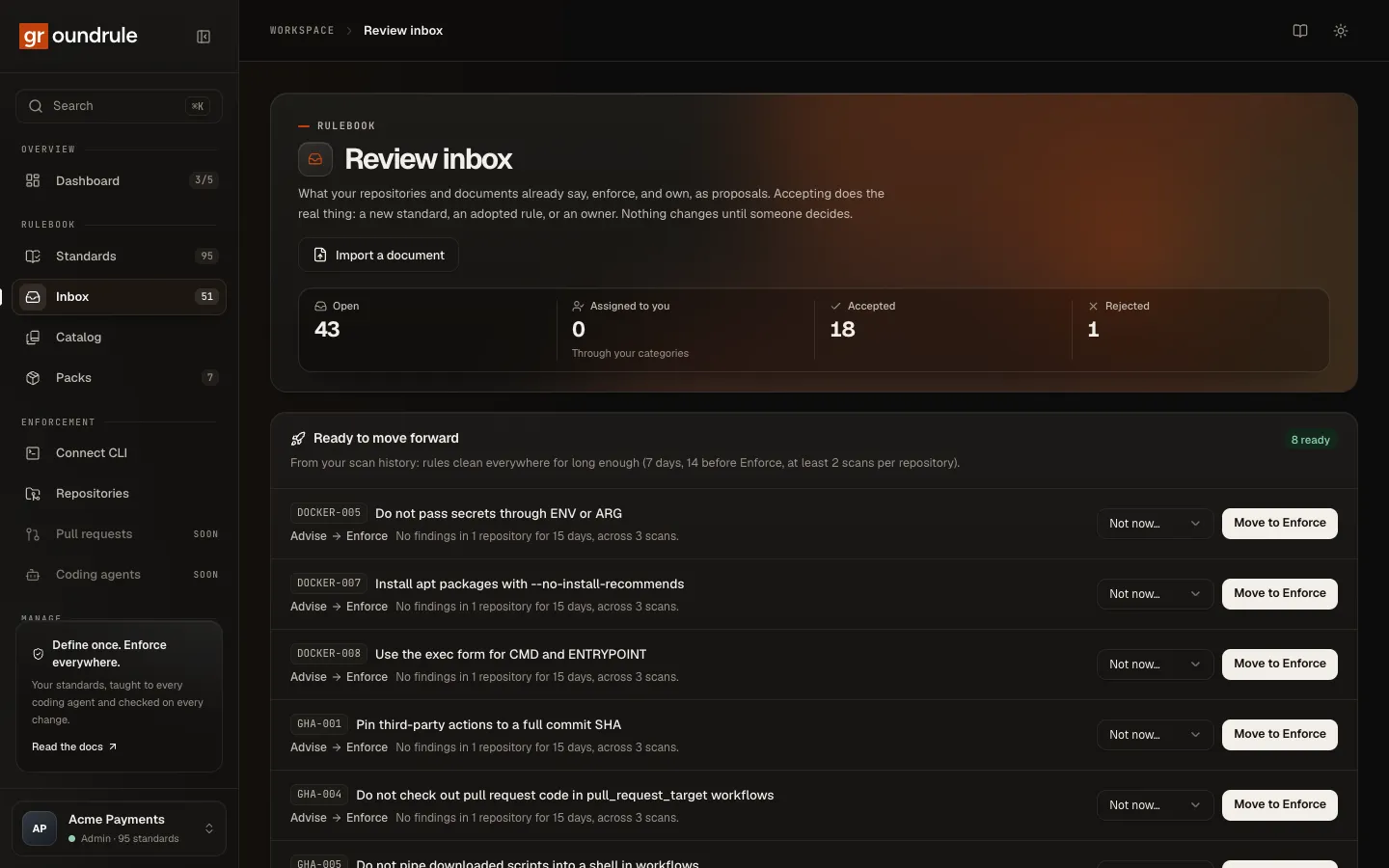
The review inbox
The inbox is where everything Groundrule finds waits for a person to decide. Scans, documents, connected apps, pull-request reviews, developers and coding agents all send proposals here. This page walks through every part of the screen and every decision you can make.
Nothing in the inbox changes your rulebook until someone accepts it. Accepting does the real thing: it creates a standard, adopts or turns off a catalog rule, or assigns an owner.
Who can do what
Section titled “Who can do what”| Role | Sees the inbox | Accepts and rejects instructions and tool settings | Decides ownership proposals | Imports documents |
|---|---|---|---|---|
| Admin | Yes | Yes | Yes | Yes |
| Platform admin | Yes | Yes | Yes | Yes |
| Standard owner | Yes | Yes | No | Yes |
| Security reviewer, Manager, Developer, Viewer | Yes | No | No | No |
Read-only roles see every proposal but no Accept…, Reject or Import a document buttons. Below the list they see: “Admins, platform admins, and standard owners decide on proposals.” See Roles and permissions.
The top of the page
Section titled “The top of the page”The banner reads Review inbox. Its button, Import a document, opens the import dialog (see Import documents).
Four counters sit under it:
| Counter | What it counts |
|---|---|
| Open | Proposals waiting for a decision |
| Assigned to you | Open proposals in categories you own, directly or through a team (“Through your categories”) |
| Accepted | Proposals someone accepted |
| Rejected | Proposals someone rejected |
Three sections can appear above the list, in this order:
- Ready to move forward. Rules that have been clean in your scans for long enough to move to the next stage. Each has Move to stage and Not now…. See Promotions.
- Documents. Imports from the last 7 days and any still in progress, with their status, size, proposal count and cost. See Import documents.
- A Refine with AI notice, when instructions were imported line by line from agent files. See Refine with AI below.
Filters
Section titled “Filters”The bar above the list has:
- Status: Open · N, Accepted, or Rejected.
- Kind: All kinds, Instructions, Tool settings, or Ownership.
- Category: All categories, each category that has proposals, or Unrouted.
- Assigned to me: a switch that shows only proposals in categories you own.
The By owner panel on the right lists every category with “N/M decided”, a progress bar, and its owners, or “No owner yet”. Click a category to filter the list to it. Click it again to clear the filter.
When nothing is open, the list says No proposals to review and links to See scanned repositories.
Categories and routing
Section titled “Categories and routing”Every proposal gets a category, so it reaches the right people. Groundrule picks it in this order:
- A tool setting takes the category of the catalog rule it maps to.
- An ownership proposal takes the category its CODEOWNERS path suggests (for example
.github/workflows/is CI). A proposal for a whole repository goes to “repositories”. - A rule AI found in a document keeps the category AI chose. AI reuses your rulebook’s categories where they fit.
- An instruction that closely matches a catalog rule takes that rule’s category.
- Otherwise, keywords in the instruction or its section decide (for example “secret” or “token” means security, “test” means testing).
- If nothing fits, the proposal is Unrouted.
A category’s owners are the people or teams assigned to it under Teams → Owners, or by accepting an ownership proposal. Their proposals count as Assigned to you for them, and show an Assigned to you label. Routing never hides a proposal from anyone else; it only helps owners find theirs.
What each proposal shows
Section titled “What each proposal shows”Each row starts with its kind, its category, an arrow to its owners, and labels:
- AI draft · N% confident when AI wrote it.
- No rule found by AI when Refine with AI read a line and found no rule in it. Reject these.
- Must, Should or Note: how strongly the original text is worded. “Must” covers words like must, never and always; “Should” covers should, prefer and avoid; “Note” is everything else, including context with no clear rule.
Under the text, each row says where it came from:
| Source | What you see |
|---|---|
| A repository scan | repository · file:line, “+N” for more places, and “in N repositories” |
| A document or connected app | A quote in a box, the document’s name, and its place: heading, page, and paragraph, for example p. 4 · Security › Secrets · ¶ 12; “+N more places” when several passages say it |
| A pull-request review import | The quote, owner/repo#123 · file:line · @reviewer, View on GitHub, and “Asked for in N review comments on N pull requests by N reviewers” |
| A developer or coding agent | “Proposed by name from the CLI” or “via agent”, the file and line, “proposed N times”, and the example, if one was given |
/groundrule rule in a review |
“Proposed by @login in a pull-request review”, the file and line, and View on GitHub |
Instructions can also show Similar (keyword match): up to three existing standards with similar words, with their evidence. This is a keyword match, not AI. Use it to spot rules you already have.
Tool settings show the setting, the rule it maps to, and how your tool treats it: Enforced by your tools, Warns in your tools, or Turned off in your tools. Pack off means the rule’s pack isn’t on in your workspace. An evidence chip such as “Passes in 2/2” shows how the rule does in your scanned repositories.
Accept an instruction
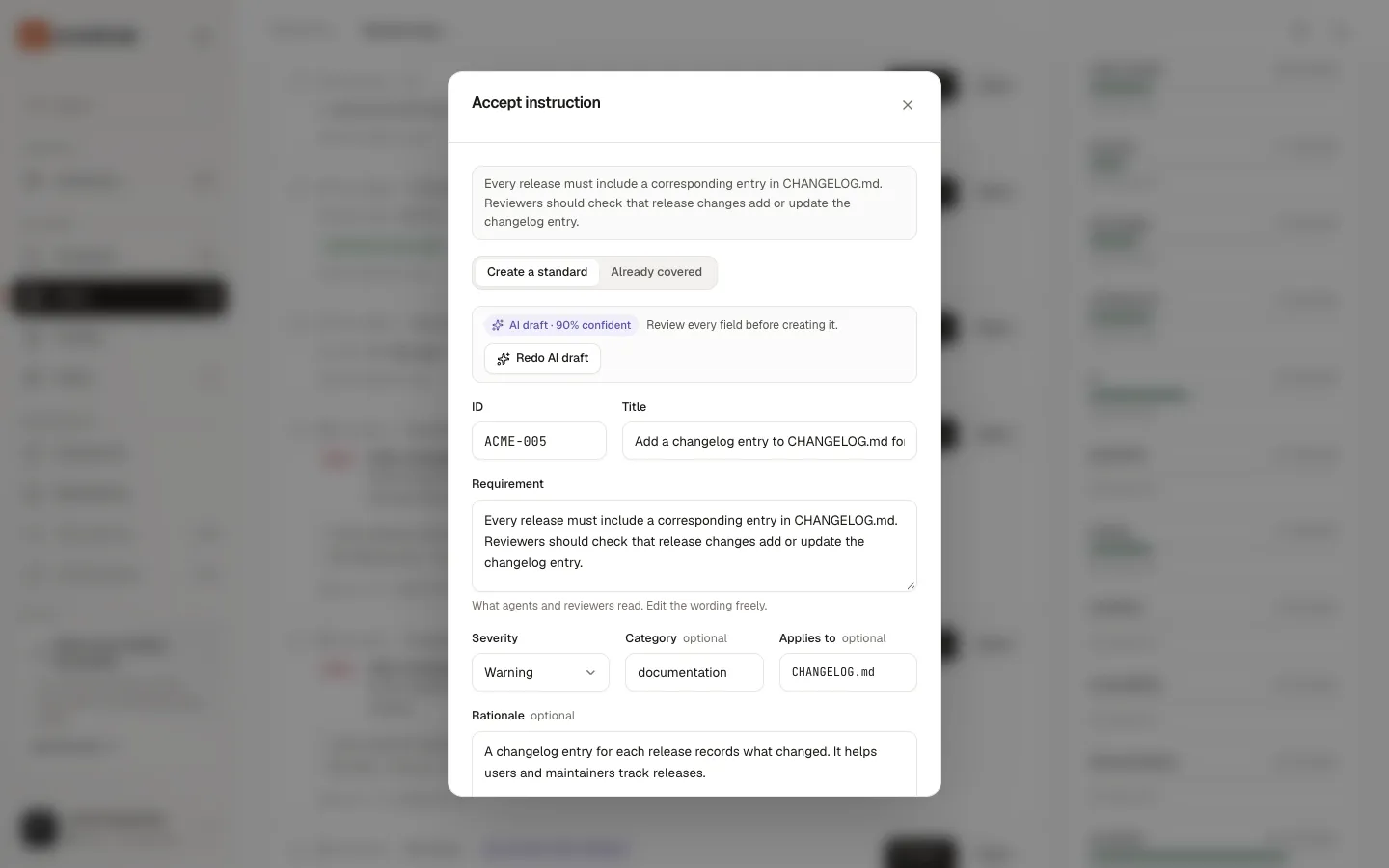
Section titled “Accept an instruction”Choose Accept… on an instruction. The Accept instruction dialog shows the original text and two ways to accept it.
Create a standard
Section titled “Create a standard”This is the default. Fill in the fields:
| Field | What it is | Prefilled with |
|---|---|---|
| ID | The new standard’s ID, such as ACME-005 |
The next free ID for your workspace |
| Title | One line, up to 120 characters | The first clause of the text, or AI’s title |
| Requirement | “What agents and reviewers read. Edit the wording freely.” Up to 2,000 characters | The original text |
| Severity | Info, Advisory, Warning, or Blocker | Must → Warning, Should → Advisory, Note → Info, or AI’s choice |
| Category (optional) | Lowercase, with dashes, such as security |
The proposal’s category |
| Applies to (optional) | Path patterns, comma-separated, such as src/** |
Paths from the source, such as a Cursor rule’s globs |
| Rationale (optional) | “Why the rule exists. Shown with the rule.” | AI’s rationale; shown once there is one |
Draft with AI fills every field from the instruction. Groundrule removes secrets from the text first. A few seconds later the fields change and the dialog shows AI draft · N% confident with “Review every field before creating it.” Redo AI draft asks again. If AI is off, the dialog says “AI drafting is off.” and links admins to Turn it on in Settings. A draft from an instruction typically costs about $0.01.
Rules found in documents arrive already drafted by AI, so their fields start filled in.
Choose Create standard. You should see “Created ID in your rulebook”.
The new standard is guidance for agents, with no automated check: “It’s guidance for agents (no automated check). Add a check later in the editor.” It is in effect for the organization at once, and the next groundrule sync writes it into your agent files. Its rationale ends with where it came from, such as “Imported from AGENTS.md in acme/checkout-api.” It is labelled imported, and also ai-drafted if you started from an AI draft. See Write a standard to add a check.
If it goes wrong:
- “IDs look like ACME-001”: use letters, a dash, and a number.
- “ID is already taken. Choose another ID.” or “ID is already defined by pack. Choose another ID.”: the ID exists; pick another.
- “Someone already decided this proposal. Reload to see the latest.”: a colleague got there first.
Already covered
Section titled “Already covered”Choose Already covered when a rule you have already says this. The dialog lists the similar rules under Covered by, each marked In your rulebook or Pack off. Pick one, or type it in Or another rule ID (for example SEC-006). Choose Accept as covered. You should see “Recorded as covered by ID”.
When a very close match exists, the dialog opens on Already covered. Nothing is created; the decision is recorded. An ID that doesn’t exist is refused: “Choose a rule that exists.”
Adopt a tool setting
Section titled “Adopt a tool setting”Choose Accept… on a tool setting. The dialog, Adopt the rule your tools enforce, explains what your tool already does, for example “eslint no-console = error already enforces TS-001 No console.log in application code.”
- If the tool enforces or warns about the rule, pick a Stage (Observe, Teach, Advise, Enforce). It starts at Enforce for an enforced setting and at Advise for a warning. Choose Adopt at stage. “Accepting sets the rule’s stage for the whole organization; teams can still be stricter.”
- If the tool turns the rule off, the button is Turn off ID. “Accepting turns the rule off for the organization, with that as the reason.” The reason recorded is, for example, “Turned off in eslint (no-debugger).”
You should see “ID is now at stage” or “Turned off ID”.
If the rule’s pack is off, accepting fails: “ID comes from the pack pack, which is off. Turn it on in Packs first.” with a link to Open Packs. See Rollout stages.
Assign an owner
Section titled “Assign an owner”Ownership proposals come from CODEOWNERS. Only admins and platform admins can decide them.
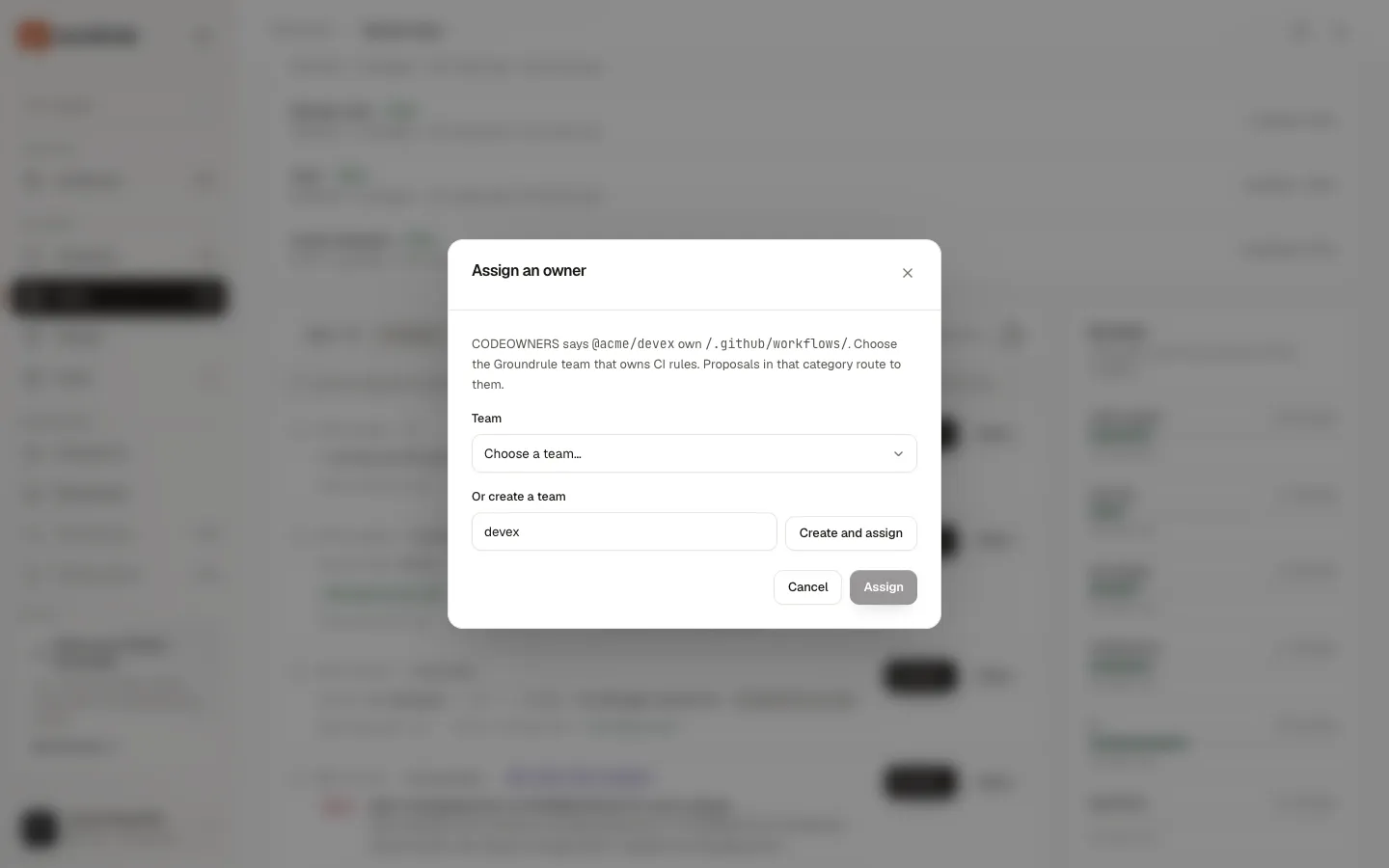
The dialog says what CODEOWNERS says, for example “CODEOWNERS says @acme/devex own /.github/workflows/.” Then:
- Team: pick an existing team from Choose a team…. A team whose name matches the CODEOWNERS owner is preselected. Choose Assign.
- Or create a team: the field is prefilled from the owner’s name (
@acme/devexbecomesdevex). Choose Create and assign to create the team and assign it in one step.
What happens depends on the pattern:
- A path with a category (such as
.github/workflows/→ CI): the team becomes an owner of that category. Proposals in it route to them. - The whole repository (
*): the repository is registered under that team, so the team’s settings apply there.
You should see “Owner assigned”, or “team assigned”. A path with neither a category nor the whole repository can’t be assigned: “This ownership entry has no category or repository to assign. Reject it instead.”
Proposals from developers, agents and pull requests
Section titled “Proposals from developers, agents and pull requests”Rules proposed with groundrule propose, the MCP tool propose_rule, or /groundrule rule in a review comment are instructions. Accept them like any instruction: Create a standard (with Draft with AI if you like) or Already covered. The reason the developer gave becomes the starting Rationale.
Proposing the same rule again adds a vote instead of a new proposal. The row shows “proposed N times”. See Rules from developers and coding agents and Rules from pull-request reviews.
Reject a proposal
Section titled “Reject a proposal”Choose Reject. The Reject proposal dialog says “It leaves the inbox. You can reopen it later.” Why is optional (up to 500 characters): “Helps owners and auditors understand the decision.” Choose Reject.
Rejected proposals appear under Rejected, with “Rejected: reason”, who decided, and when.
Reopen a decision
Section titled “Reopen a decision”Under Accepted or Rejected, choose Reopen on a proposal to send it back to Open. You should see “Back in the inbox. Anything it created stays; change it where it lives.” Reopening doesn’t delete a standard or undo an adoption. Change those on the rule’s page.
Decide several at once
Section titled “Decide several at once”When you can decide proposals, a checkbox appears on each open row and Select all above the list. Select proposals, then:
- Accept with defaults. Instructions become guidance standards, with the next free IDs, a title from the first clause, the severity from the wording (Must → Warning, Should → Advisory, Note → Info), and the category and paths from the proposal. Tool settings adopt their rule (Enforce, or Advise for a warning) or turn it off.
- Reject… opens the reject dialog once for all of them.
- Clear clears the selection.
Each proposal succeeds or fails on its own. You should see “Accepted N” or “Rejected N”. Failures stay selected, with a message such as “1 couldn’t be accepted: …”. Ownership proposals need a team, so they can’t be accepted in bulk: “Choose a team for ownership proposals one at a time.” You can select up to 200 at once.
Refine with AI
Section titled “Refine with AI”A scan splits agent files line by line: each list item or directive paragraph becomes one instruction. That gives you exact sources, but also fragments, commands, and descriptions. When some are open, a notice says “N instructions were imported line by line”.
Choose Refine with AI. Groundrule shows the cost estimate (see Import documents); choose Find rules. AI then:
- merges fragments that state one rule;
- skips commands and descriptions;
- gives each rule a title, severity, and category;
- cites the file and line of each rule.
Open line-by-line proposals that became part of a refined rule are closed as “Merged into a proposal refined with AI”. Lines AI read and found no rule in are marked No rule found by AI, so you can reject them. Nothing else changes until you accept.
In one test, 15 lines of a CLAUDE.md became 12 rules for about $0.05. AI skipped a staging URL and a line about asking a specific person.
AI labels and confidence
Section titled “AI labels and confidence”Everything AI writes is labelled AI draft · N% confident. The confidence is AI’s own estimate of how sure it is that this is a real rule and says what the source means. Below 50% means the text was vague, aspirational, or needed context AI couldn’t see. AI never accepts anything; a person always decides. See AI and your data.
Dark mode
Section titled “Dark mode”The inbox follows your theme.