Sign in and your account
You can sign in to Groundrule with a password, with a one-time link sent to your email, or with GitHub where it’s enabled. This page covers each way, password resets, how long you stay signed in, and the Settings → Your account page.
The command-line tool (CLI) signs in differently, through your browser and an API token. That’s covered in API tokens and the CLI quickstart.
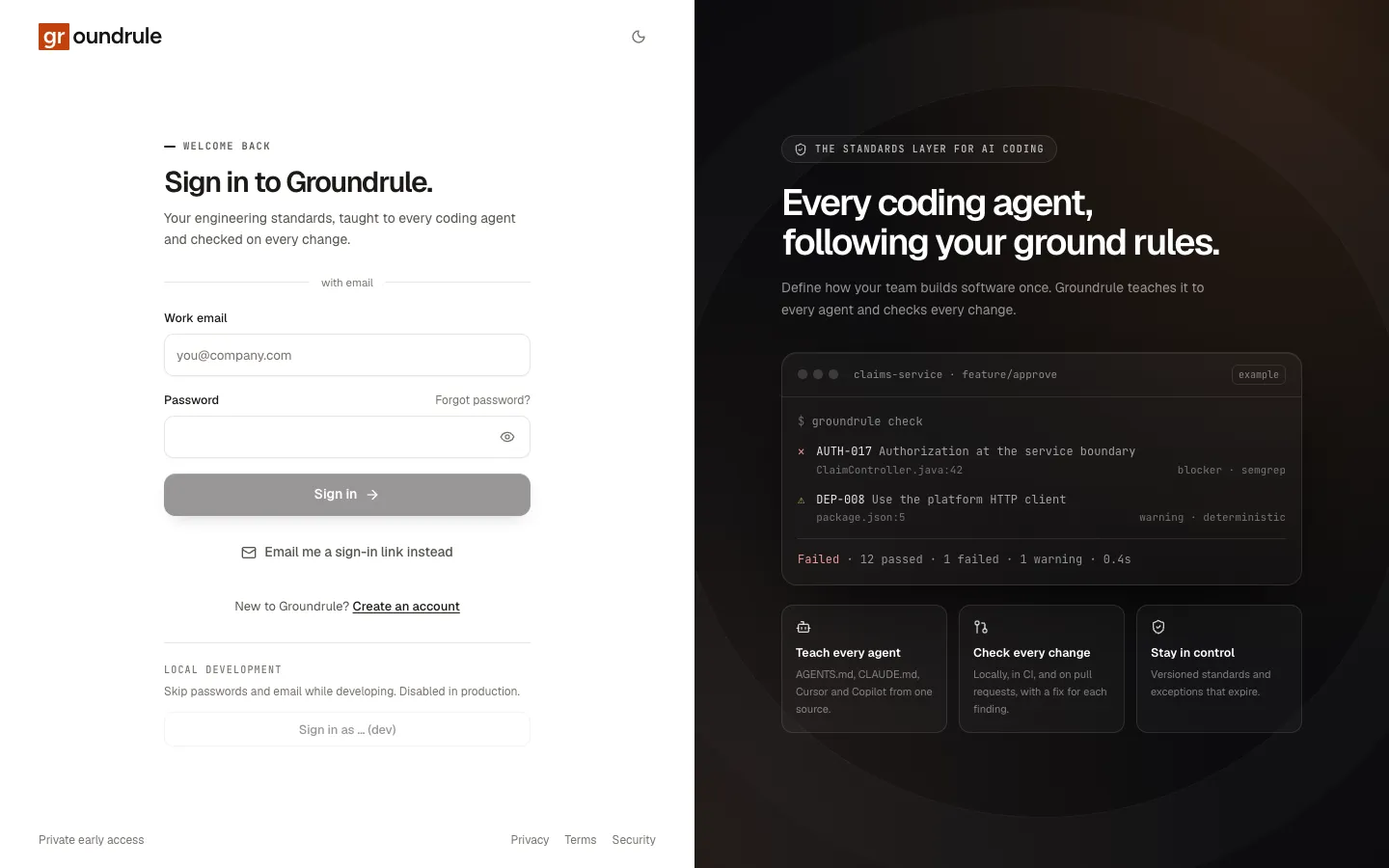
Sign in with a password
Section titled “Sign in with a password”- Go to app.groundrule.dev.
- Enter your Work email and Password.
- Choose Sign in.
You should land on your workspace’s dashboard. If you belong to several workspaces, you land on the first one in alphabetical order; switch with the account menu at the bottom of the sidebar.
If it goes wrong:
| Message | What it means |
|---|---|
| “That email and password don’t match.” | The password is wrong, or there’s no account with a password for that email. The message is the same in both cases, on purpose. |
| “Confirm your email first. We’ve sent you a new link.” | You signed up but haven’t confirmed your address. Open the new link. |
| “Too many attempts. Wait a few minutes and try again.” | Too many attempts for this email or from your network in 15 minutes. |
Groundrule never locks an account after failed attempts, because that would let anyone lock you out. It slows attempts down instead.
Sign in with an email link
Section titled “Sign in with an email link”Use this if you don’t have a password, or don’t remember it.
- Enter your Work email on the sign-in page. You can leave the password empty.
- Choose Email me a sign-in link instead.
- Open the email from Groundrule and its link, on any device.
- Choose Sign in on the page that opens.
The page asks for a click so that email scanners that open links can’t use yours up. If you didn’t ask for the link, close the page.
A sign-in link:
- works once;
- expires after 15 minutes;
- is replaced by any newer link you request.
An old or used link opens Link expired (“This sign-in link doesn’t work.”). Choose Request a new link.
If you choose Email me a sign-in link instead before typing an email, the page says “Enter your email first, and we’ll send you a sign-in link.”
Sign in with GitHub
Section titled “Sign in with GitHub”Where your deployment has GitHub sign-in turned on, the sign-in page shows Continue with GitHub and the sign-up page shows Sign up with GitHub.
- Choose Continue with GitHub.
- Approve Groundrule on GitHub. It asks to read your profile and your email addresses.
- You come back signed in.
Groundrule matches accounts by email. If your GitHub account’s verified primary email is the same as an existing Groundrule account, signing in with GitHub connects GitHub to that account, and you can use either from then on.
If it goes wrong:
| Message | Fix |
|---|---|
| “GitHub sign-in didn’t complete. Please try again.” | The approval was cancelled or took too long (more than 10 minutes). Start again. |
| “Your GitHub account has no verified primary email. Verify one in GitHub’s email settings, then try again.” | Verify your primary email on GitHub. Groundrule needs it to identify you. |
Forgot your password
Section titled “Forgot your password”- On the sign-in page, choose Forgot password?.
- Enter your Work email and choose Send reset link.
- Open the email and its link.
- Enter a New password and type it again in Confirm it. The same password rules apply as at sign-up.
- Choose Save and sign in.
You should be signed in with the new password. Every other browser session on your account is signed out (“You’ll be signed out on every other device”), and you get an email saying your password changed.
A reset link works once and lasts 30 minutes. An old or used link shows Link expired (“This reset link doesn’t work.”); choose Send a new link.
The Check your inbox page appears even for an email that has no account, and no email is sent in that case. This keeps the form from revealing who has an account.
If the two passwords differ, the page says “The two passwords don’t match.”
How long you stay signed in
Section titled “How long you stay signed in”- A browser session lasts 30 days from when you signed in. After that, you sign in again. Using the dashboard doesn’t extend it.
- Each session is listed under Settings → Your account → Where you’re signed in, where you can end it.
- Changing your password ends every other session. Resetting it ends all of them, then signs you in with the new password.
- Being removed from a workspace ends your access to it immediately, but not your account.
Sign out
Section titled “Sign out”Open the account menu at the bottom of the sidebar (your workspace’s name and your role) and choose Sign out. This ends this browser’s session only. To sign out elsewhere, use Where you’re signed in.
Settings → Your account
Section titled “Settings → Your account”These settings belong to you, not to a workspace, so they follow you into every workspace you’re in. Open them from Settings → Your account, or from Your account in the account menu.
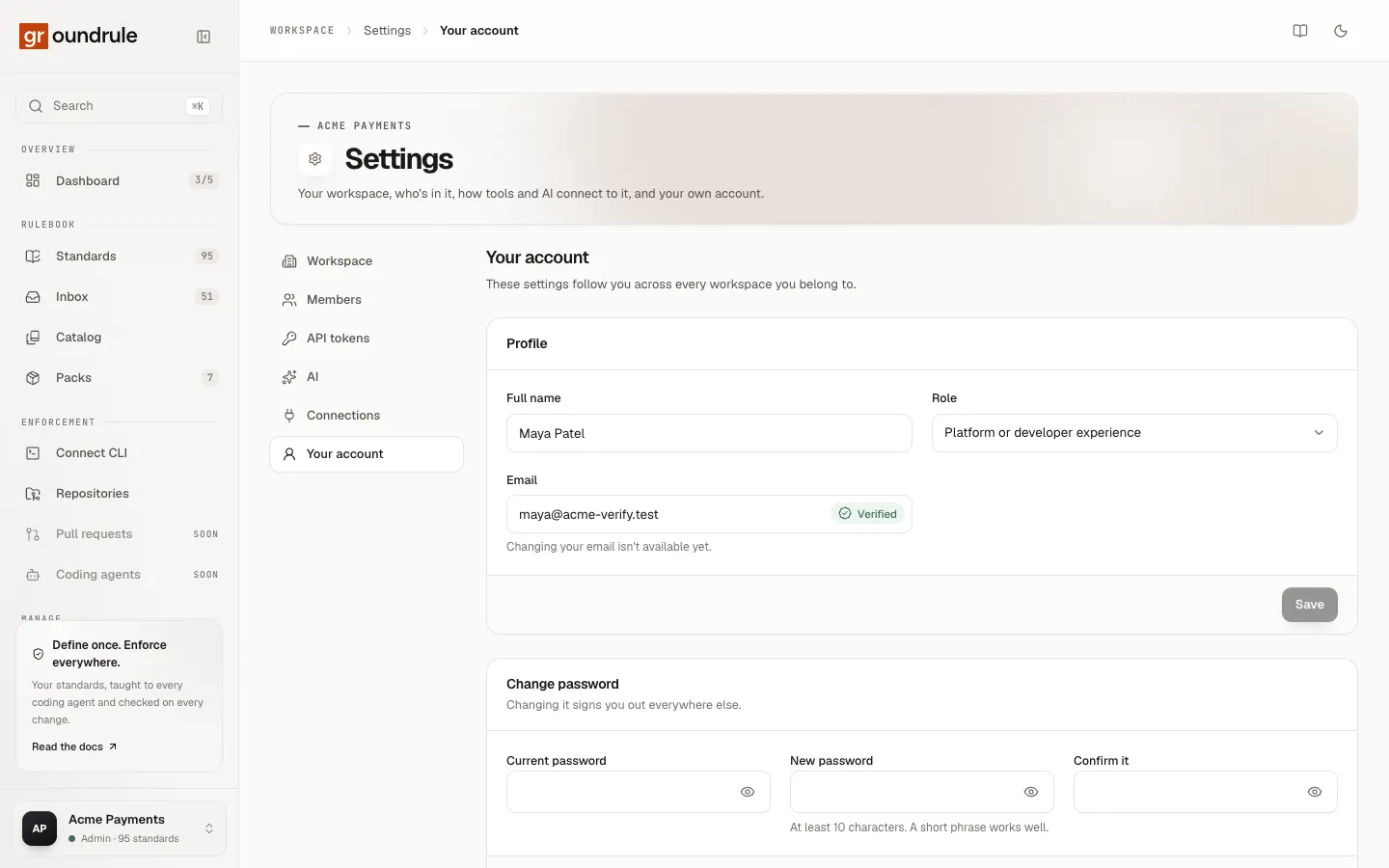
Profile
Section titled “Profile”| Field | Notes |
|---|---|
| Full name | Up to 120 characters. Shown on standards you own, changes you approve, and invitations you send. |
| Role | The same choices as onboarding, such as Platform or developer experience. It describes your job; it doesn’t change your permissions. |
| Shown with a Verified badge. “Changing your email isn’t available yet.” |
Choose Save. You should see “Profile saved”.
Change password
Section titled “Change password”Enter your Current password, a New password of at least 10 characters, and the new one again in Confirm it. Choose Change password.
You should see “Password changed. Other sessions were signed out.” Every other browser stays signed out until it signs in again; this browser stays signed in. Groundrule emails you that the password changed.
If it goes wrong:
| Message | Fix |
|---|---|
| “That isn’t your current password.” | Retype the current password. If you’ve forgotten it, sign out and use Forgot password?. |
| “The two passwords don’t match.” | Make New password and Confirm it the same. |
| A message under New password | The new password breaks a rule, for example “That password is too common. Choose something less predictable.” |
If you signed up with GitHub or an email link, you have no password yet. The panel is called Set a password instead (“You sign in with GitHub or email links. Add a password to sign in with it too.”), it has no current-password field, and the button reads Set password.
Ways to sign in
Section titled “Ways to sign in”This panel shows which sign-in methods your account has:
| Method | Status |
|---|---|
| Email and password | On, or Not set if you have no password |
| Email sign-in link | Always On |
| GitHub | Connected as @your-login, or Not connected |
There’s no connect button for GitHub. To connect it, sign out and sign in once with Continue with GitHub, using a GitHub account whose verified email is the same as this account’s.
Where you’re signed in
Section titled “Where you’re signed in”Every browser signed in to your account, described by browser and operating system (for example, Chrome on macOS), with when it was last active and when it signed in. This browser is marked This browser.
- Sign out next to a session ends it.
- Sign out everywhere else ends every session except this one. It asks you to confirm, then says how many it ended.
The CLI doesn’t appear here. It uses API tokens, which are listed under Settings → API tokens.